

How to Create and Sell Printable Certificates in Canva: A Step-by-Step Guide

You made a beautiful certificate for one student, one employee, or one course graduate — and then it hit you. That same design could sell again and again, to hundreds of buyers, while you sleep. That is exactly how printable certificates to sell in Canva work, and you can build your first one this weekend with a free Canva account.
In this guide, you will learn how to pick a niche that sells, design a certificate buyers love, package it so customers can add names themselves, price it fairly, and list it where buyers are already looking.
What Are Printable Certificates?
Printable certificates are digital files buyers download and print at home, at school, or at work. A buyer purchases your PDF once, types in a name, prints it, and hands it to someone — and you never touch a printer or a post office.
Featured-snippet answer: Printable certificates are ready-made certificate designs sold as digital downloads. Buyers purchase the PDF, add a recipient’s name, and print it at home. Sellers create them in Canva, package them as print-ready files, and list them on Etsy or their own website for passive income.
Most certificates fall into four groups: course and training completion, kids’ awards and classroom achievements, employee recognition, and fun or gift certificates for birthdays and weddings. Each group has different buyers, so choosing one group first makes every later step easier.
But here’s the part most people miss: the certificate itself is only half the product. The other half is the experience — clear instructions, an editable name field, and a file that prints cleanly.
Step 1: Pick a Certificate Niche That Actually Sells
Start with buyers, not with design. A certificate sells when someone needs it again and again — a teacher who awards thirty students every term, a coach who finishes a course every month, or a manager who recognises staff every quarter.
What to do: Choose one proven niche for your first certificate: course completion, kids’ classroom awards, employee of the month, or printable gift certificates for small businesses. This one choice shapes the whole plan for printable certificates to sell in Canva.
Exactly how: Open Etsy and type “printable certificate” into the search bar. Look at the listings with the most reviews and write down the top five certificate types. The types that appear in several shops have steady demand.
Example: If ten shops sell “certificate of completion” designs with hundreds of reviews each, that niche has buyers. Serve the same need with a fresh look — different colours, a cleaner layout, or a bundle of three matching designs.
Pro Tip: Pick a niche you already understand. A teacher will design better classroom awards than someone guessing what teachers need, and a fitness coach will write better completion wording for a training course than a stranger would.
Step 2: Design Your Certificate in Canva
This is the fun part — and the step where most beginners overdo it. A good certificate looks calm, balanced, and easy to read. The recipient’s name is the star, so everything else should support it, not fight it.
What to do: Open Canva, choose a custom size of 11 x 8.5 inches in landscape, and build your first printable certificates to sell in Canva on that single page.
Exactly how: Start with a plain background in a soft colour, add a thin double border in a darker shade, place your title in a classic serif font at the top, and leave a large empty space in the middle for the recipient’s name. Add two small signature lines at the bottom — one for the issuer and one for the date.
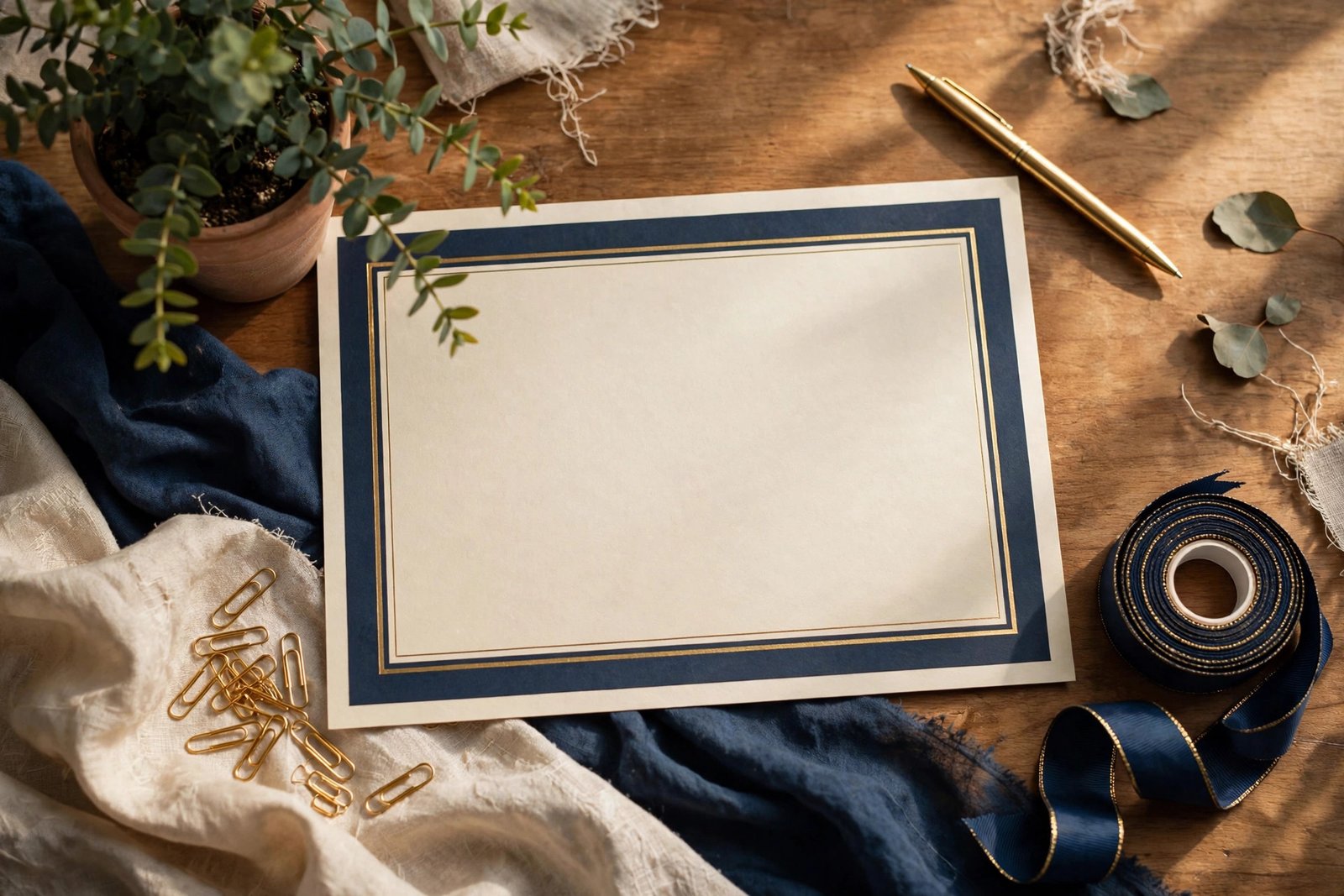
Example: A course completion certificate might use a cream background, a navy double border, the title in Playfair Display, and the recipient’s name in a large script font. That takes about twenty minutes to build in Canva and looks far more expensive than it is.
Pro Tip: Stick to two fonts and three colours at most. One elegant serif for headings, one clean sans-serif for small text, and a simple palette like navy, gold, and cream will make your certificate look professional instead of crowded.

Step 3: Make It Editable So Buyers Can Add Names
A certificate buyers cannot personalise is a certificate they will not buy twice. Your buyers need to type a name into the certificate without breaking your design, so decide how they will edit it before you list it.
What to do: Offer your certificate in two forms — a print-ready PDF for buyers who just want to print it, and a Canva template link for buyers who want to edit names and details.
Exactly how: In Canva, finish your design, click Share, then choose “Template link” and copy that link into a simple instruction sheet. Buyers who open the link get their own copy to edit, while your original stays untouched. For the PDF version, download the design as PDF Print, which keeps text sharp at any size.
Example: Your instruction sheet can be one page: “1. Open the Canva link. 2. Click the name line and type the recipient’s name. 3. Download as PDF Print. 4. Print on A4 or Letter card.” Four lines, no confusion, no support emails.
Common Mistake: Never send buyers a link that lets them edit your original design. Always use a template link, and test it in a private browser window before you list the product.
Step 4: Package Your Files Like a Professional Seller
Buyers judge your whole shop by the download they receive. A tidy folder with clear file names and a short instruction sheet feels professional; a single mystery file called “final-final-v3.pdf” does not.
What to do: Build a small product folder with everything the buyer needs: the PDF Print file, a PNG version for digital sharing, the Canva template link in an instruction sheet, and a simple licence note.
Exactly how: Name your files clearly, for example “Certificate-of-Completion-A4.pdf” and “Certificate-of-Completion-US-Letter.pdf”. Add a one-page “Read Me” PDF with the template link, printing tips, and a licence note saying the design is for personal use or the buyer’s own business, not for resale as a template.
Example: A complete package for one certificate design usually contains four or five files and takes about ten minutes to assemble — and that ten minutes is what turns a one-off download into a product buyers recommend to friends.
Pro Tip: Include both A4 and US Letter sizes in every package. Buyers live everywhere, and a certificate that prints slightly off-size is the most common complaint in this niche.

Step 5: Price It Fairly and List It Where Buyers Look
Pricing a certificate is simpler than pricing a planner or a course, because the buyer already knows what a certificate is worth to them. Your job is to land in the range buyers expect — not the cheapest, and not the most expensive.
What to do: List a single certificate design for around $3 to $5, and a bundle of three to five matching designs for around $12 to $20.
Exactly how: Start on Etsy if you want buyers to find you, and list the same product on your own website if you want to keep more of each sale. On Etsy, write a title that says exactly what the product is, for example “Printable Certificate of Completion, Editable Canva Template, Instant Download.” Clear titles and good mockups are what make printable certificates to sell in Canva stand out in a crowded search.
Example: A seller who lists one certificate at $4 and a matching set of five at $15 will often find the bundle outsells the single design, because buyers who need certificates for a whole class or team would rather buy the set once than five singles.
Pro Tip: Add one free sample to your shop — a simple “Star Student” award certificate buyers can download without paying. It brings new visitors in, and many of them return to buy the paid designs.
Step 6: Promote Your Certificate With Mockups and Pinterest
A certificate is a visual product, so it sells on how it looks. Nobody buys a certificate from a plain text description. Your promotion should show the certificate the way a buyer will actually use it — printed, framed, and handed to someone proud.
What to do: Create two or three mockup images in Canva: the certificate in a simple frame on a desk, and a flat top-down shot of the certificate with a pen and a small plant beside it.
Exactly how: Upload those mockups to Pinterest with titles that match what buyers search for, such as “Printable certificate of completion template” and “Editable award certificate for students.” Link every pin back to your listing. One strong pin can bring buyers for months, because certificate searches repeat every school term and every training season.
Example: A single Pinterest pin showing a framed certificate on a wooden desk, titled “Printable Certificate of Completion — Editable in Canva,” can quietly send traffic to your listing for a year.
Common Mistake: Do not promote only on the day you launch. Certificate demand repeats in waves — end of term, end of training, award season — so keep your pins live and add one new design each wave.

Printable Certificates: Which Type Should You Start With?
| Certificate type | Main buyer | Typical price | Design effort |
|---|---|---|---|
| Course completion | Coaches, trainers | $3–$5 single | Low — clean and formal |
| Kids’ classroom awards | Teachers, parents | $3–$5 single | Medium — playful and bright |
| Employee recognition | Managers, HR teams | $4–$6 single | Low — elegant and simple |
| Gift certificates | Small business owners | $5–$8 single | Medium — branded and warm |
If you are choosing your first design, start with course completion. It has the steadiest demand, the simplest layout, and the widest audience — and the same design can be re-coloured into a kids’ award or an employee certificate later.
Common Mistakes to Avoid
Copying another seller’s design. Even a small change to someone else’s layout is still copying. Build from a blank Canva page with your own colours and wording.
Using premium Canva elements you cannot resell. Free elements are usually fine for commercial use, but check Canva’s licence rules before you list. If an element needs a Pro licence, buy the licence or replace it with a free one.
Forgetting the print test. Always print your certificate once on normal home paper before listing it. Colours look different on paper than on screen, and a border too close to the edge will get cut off by some printers.
Selling a single size only. Buyers in different countries print on different paper. Offer A4 and US Letter, and say so clearly in the listing.
Writing vague listing titles. “Beautiful certificate” tells a buyer nothing. “Printable Certificate of Completion, Editable Canva Template” tells them everything they need to click.
Quick Checklist Before You Publish Your First Certificate
- One niche chosen — course, classroom, employee, or gift
- Certificate designed in Canva at 11 x 8.5 inches, landscape
- Two fonts and three colours at most, name space left clear
- Template link tested in a private browser window
- PDF Print file downloaded and test-printed at home
- A4 and US Letter sizes both included
- Instruction sheet with the template link and printing tips
- Licence note included — personal and business use, no resale as a template
- Price set: $3–$5 single, $12–$20 for a bundle
- Listing live with a clear title and a framed mockup photo
- Two or three Pinterest pins pointing at the listing
Frequently Asked Questions
Can you sell certificates made in Canva?
Yes, as long as you follow Canva’s licence rules. Use free elements or elements covered by your Pro licence, design from a blank page rather than reselling a Canva template as-is, and sell your finished design as a PDF or a template link.
What size should a printable certificate be?
Most printable certificates use US Letter landscape at 11 x 8.5 inches or A4 landscape at 11.7 x 8.3 inches. Landscape is the standard because it gives the recipient’s name room to breathe and matches the frames buyers already own. Offer both sizes.
Do buyers need Canva Pro to edit my certificate?
No. Buyers can edit a Canva template link with a free Canva account as long as your design uses only free elements. If your design uses Pro elements, buyers will need Canva Pro to edit those parts, so stick to free elements when you design for sale.
Where is the best place to sell printable certificates?
Etsy is the easiest place to start because buyers already search there for certificates. Your own website, like the Haseen Tools shop, keeps more of each sale and builds your own customer list. Many sellers do both: Etsy for discovery, their own shop for repeat buyers.
How much money can you make selling printable certificates?
That depends on your designs, your prices, and how many listings you build. A single certificate at $4 will not replace a salary, but a shop with twenty certificate designs, each selling a few times a month, adds up to steady income. Certificates are a volume product — small prices, repeated sales, and almost no cost per sale.
Conclusion
Printable certificates to sell in Canva are one of the simplest digital products a beginner can build, and one of the most forgiving. You already know the tool, the buyers already exist, and a single design can sell for years with almost no extra work.
- Pick one niche — course, classroom, employee, or gift — and design for that buyer first.
- Build a clean, calm certificate in Canva with room for the recipient’s name.
- Make it editable with a template link and test that link before you list.
- Package A4 and Letter sizes with a short instruction sheet, price it at $3–$5, and list it where buyers search.
Your first certificate does not need to be perfect. It needs to be finished, listed, and visible. Design one today, list it this weekend, and let the next school term or training season bring the buyers to you. Browse the Haseen Tools shop for more ideas, and try the printable worksheets and printable flashcards for kids guides when you are ready for your second product.