





Understanding Digital File Formats: PDF, PNG, SVG Explained Simply


You download a design bundle and get a soup of files: PDF, PNG, SVG, maybe a JPG. Which one do you actually use? Pick wrong and your crisp logo prints as a blurry smudge — or your cutting machine refuses the file entirely.
This guide gives you a simple decision system: what each format does, exactly when to reach for it, and how to export it correctly from Canva, Illustrator, or Photoshop. Five steps, zero jargon.
Step 1: Match the Format to the Job in 10 Seconds
What to do: Memorise one decision rule and you will never guess again.
Exactly how: Ask what the file is for. Multi-page or print-bound — PDF. Web graphic or sticker needing transparency — PNG. Logo, icon, or cutting-machine design that must scale — SVG. Photograph for the web — JPG. That covers 99% of what you will ever touch.
Example: You are listing a printable planner (PDF), need your shop logo on a lifestyle photo with no white box (PNG with transparency), and want to sell a matching vinyl decal for Cricut users (SVG). Three jobs, three formats, ten seconds of thought.
Pro tip: When a seller, include all three in your product: PDF for print buyers, PNG for mockup users, SVG for crafters. Bundles with complete format sets earn noticeably fewer “which file do I use?” messages.
Step 2: Use PDF for Anything Meant to Be Printed
What to do: Make PDF your default for planners, worksheets, ebooks, and wall art.
Exactly how: PDF locks layout, fonts, and images exactly as designed, on every device, with razor-sharp print quality across dozens of pages. Export as “PDF Print” (not “PDF Standard”), add 3mm bleed if a print shop will trim edges, and embed fonts so text never reflows. Buying a planner? Check it is hyperlinked — tappable tabs are what make a digital planner feel real. Prefer planning in an app? Start with our Notion templates guide.
Example: You export a 48-page journal as “PDF Standard” to keep the file small. The print shop calls: the cover art is pixelated and two fonts substituted. Re-export as PDF Print with bleed and embedded fonts — 15 extra seconds, zero phone calls.
Pro tip: Always open your exported PDF on your phone before listing it. If it looks perfect on a small screen, it will look perfect everywhere.
Step 3: Use PNG When You Need Transparency or Crisp Edges
What to do: Reach for PNG for logos, mockup overlays, digital stickers, and social graphics.
Exactly how: PNG keeps sharp edges intact without compression smudging — and supports transparent backgrounds. In Canva, tick “Transparent background” before downloading; in Photoshop, use Export As → PNG with transparency checked. Export at 2x display size (or 300 DPI for print) so edges stay razor sharp. For presenting finished graphics, see our guide to selling more with mockups.
Example: You need your white logo on a dark product photo. As a JPG it arrives with an ugly white box; as a PNG with transparency it sits cleanly on the image like it was always there. Same logo, one checkbox of difference.
Pro tip: PNG files run large. If a PNG is only ever shown on the web at 800px wide, export it at 1600px — not 6000px. You keep the crispness and cut the file size by two-thirds.
Step 4: Use SVG for Logos, Icons, and Cutting Machines
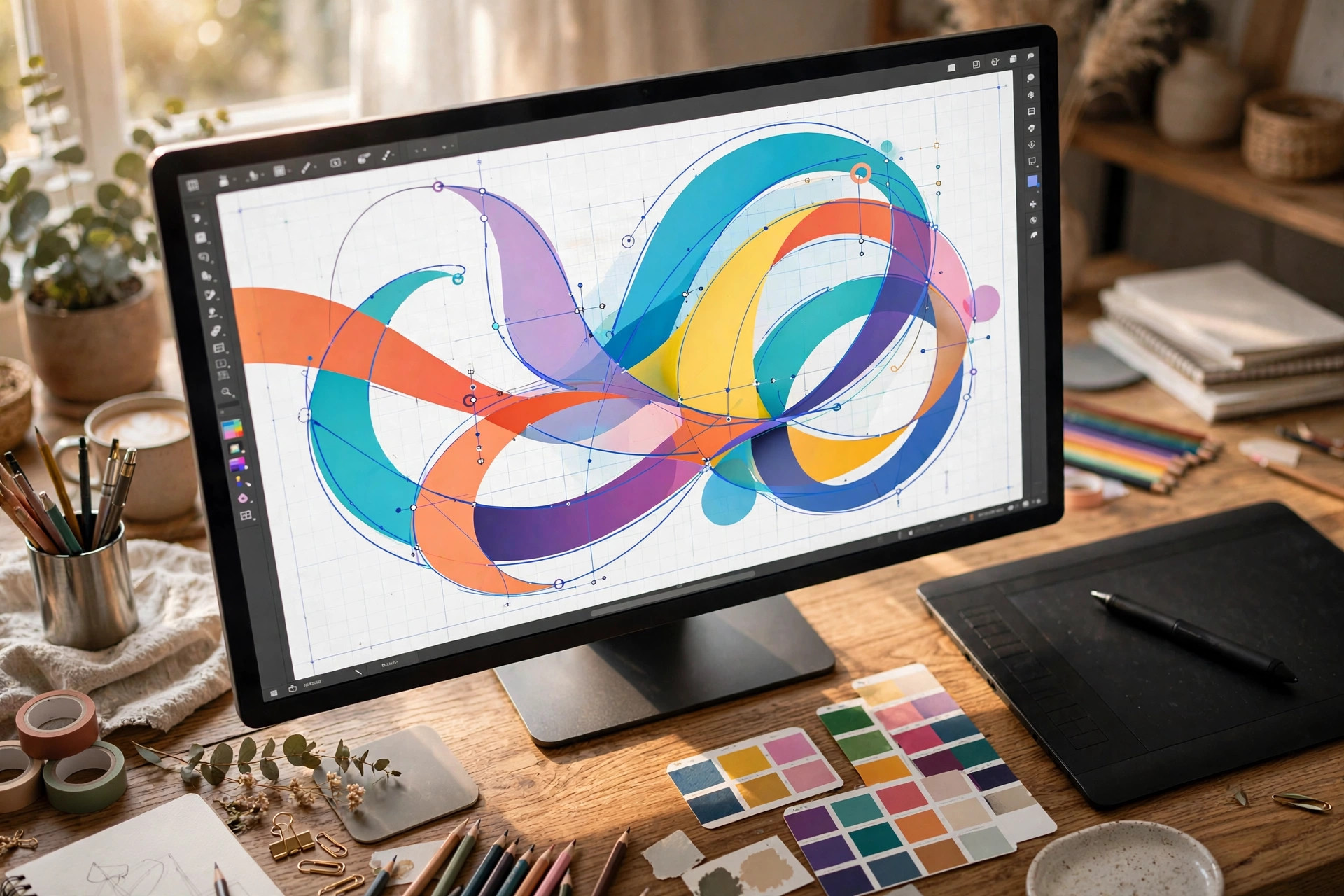
What to do: Use SVG whenever a graphic must scale from tiny to huge without losing quality.
Exactly how: SVG stores drawing instructions instead of pixels, so it scales infinitely — sharp on a business card, sharp on a billboard — and it is the standard for Cricut and Silhouette machines. In Illustrator use Save As → SVG; in Canva Pro pick SVG in the download menu. Convert text to outlines first (Type → Create Outlines) so the design renders identically without your font.
Example: You sell a “home sweet home” wall decal. The PNG version maxes out at 12 inches before edges go soft; the SVG version cuts cleanly at 12 inches or 4 feet. Craft buyers will pay a premium for the SVG — and leave better reviews.
Pro tip: If you sell craft or Cricut designs, always include the SVG and a PNG preview. The preview lets buyers see the design instantly; the SVG is what their machine actually cuts.
Step 5: Export Correctly From Your Design Tool
What to do: Run a 60-second export routine so the right format leaves your computer every time.
Exactly how: In Canva: Share → Download → pick the type, tick transparent background for PNGs, choose “PDF Print” with bleed for print. In Illustrator: Save As for SVG masters, Export As for PNGs at 300 PPI. In Photoshop: Export As, double-checking transparency. Then verify: open the file, zoom to 200%, confirm clean edges and true transparency. See the Canva templates collection for how pros package multi-format downloads.
Example: A seller exports 200 social templates as JPGs to save space. Buyers complain the white backgrounds clash with their brand colours. One re-export as transparent PNGs — a single afternoon’s batch job — ends the complaints permanently.
Pro tip: Name exports with the format and size baked in: logo-transparent-2000px.png. Future you, and your buyers, will thank present you.
Common Mistakes to Avoid
- Exporting a logo as JPG and wondering about the white box. JPG has no transparency, ever. Logos that sit on other designs must be PNG or SVG.
- Sending a PNG to the print shop for a 40-page planner. One PDF replaces forty loose images and prints identically on every machine.
- Blowing up a small PNG for a poster. Pixels do not invent detail. If it must go big, you needed the SVG from the start.
- Forgetting bleed on print PDFs. No bleed means a hairline white edge after trimming — the classic amateur tell.
Quick Checklist: Right Format, First Try
- Format matched to the job: PDF for print, PNG for transparency, SVG for scale.
- Transparency verified — no surprise white boxes.
- Resolution at 300 DPI (or 2x size) for anything that might print.
- Fonts embedded in PDFs, converted to outlines in SVGs.
- One test open at 200% zoom before the file goes to a buyer or printer.
File formats are a solved problem once you stop guessing: print means PDF, overlay means PNG, scale means SVG. Nail that trio and every download you buy — or sell — behaves exactly the way it should.
2 thoughts on “Understanding Digital File Formats: PDF, PNG, SVG Explained Simply”