





The Ultimate Guide to Social Media Template Bundles

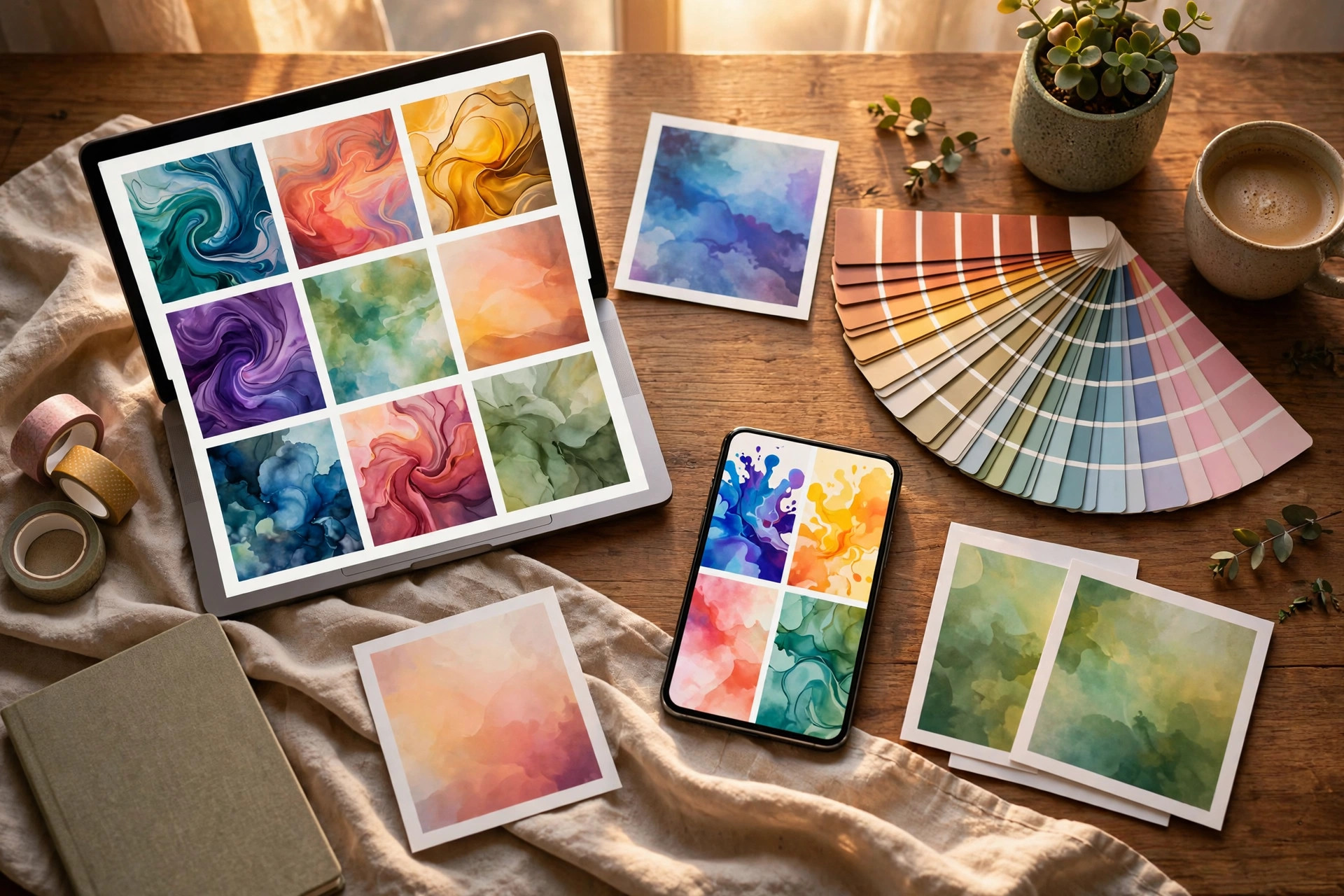
Your feed looks inconsistent, your posts take an hour each, and the result still looks homemade. Social media template bundles fix all three problems at once — hundreds of professionally designed posts, stories, and carousels you can customise in minutes. Here is how to pick the right bundles and turn them into a feed that looks like you hired a designer.
Step 1: Know What Is Actually Inside a Bundle
What: A social media template bundle is a pack of editable designs — Instagram posts, stories, carousels, sometimes Pinterest pins and Facebook covers — delivered as Canva templates you open, edit, and export as your own.
Exactly how: Before buying, check three things on the listing. First, the real template count: a genuine bundle has 100 or more designs, not twelve stretched across preview images. Second, the formats included: square posts (1080×1080), stories (1080×1920), multi-slide carousels, plus any extras like quote graphics or covers. Third, confirm the templates are fully editable on Canva’s free plan — most quality bundles are, but check that key fonts and elements are not locked behind Canva Pro assets you cannot access.
Example: A 250-template bundle might contain 100 square posts, 80 story layouts, 40 carousel slides, and 30 quote graphics. At a $19 price, that works out to under eight cents per design — less than one coffee for a year of content foundations.
Pro tip: Count unique layouts, not total files. Some sellers inflate counts by shipping the same design in five colour variants. Preview images showing genuinely different layouts are the honest signal.
Step 2: Choose Quality Over Quantity
What: A badly designed bundle wastes more time than it saves. Learn to spot professional design in sixty seconds before you pay.
Exactly how: Open the preview images and judge three things. Alignment: do text boxes sit on invisible grid lines, or do they drift? Font discipline: two fonts maximum, readable at phone size, or a chaotic mix? Whitespace: does the design breathe, or is every corner stuffed? Then read the buyer reviews and search for the word “easy” — buyers mentioning easy customisation is the strongest quality signal any bundle can carry.
Example: Two bundles both promise 500 templates for $15. Bundle A’s previews show crooked text and seven fonts; Bundle B’s show clean grids and consistent colour families. Bundle B saves you an hour a week in fixes; Bundle A costs you one.
Pro tip: If the seller’s own preview images look sloppy, the templates will be worse. The preview is the best work they were capable of showing you.
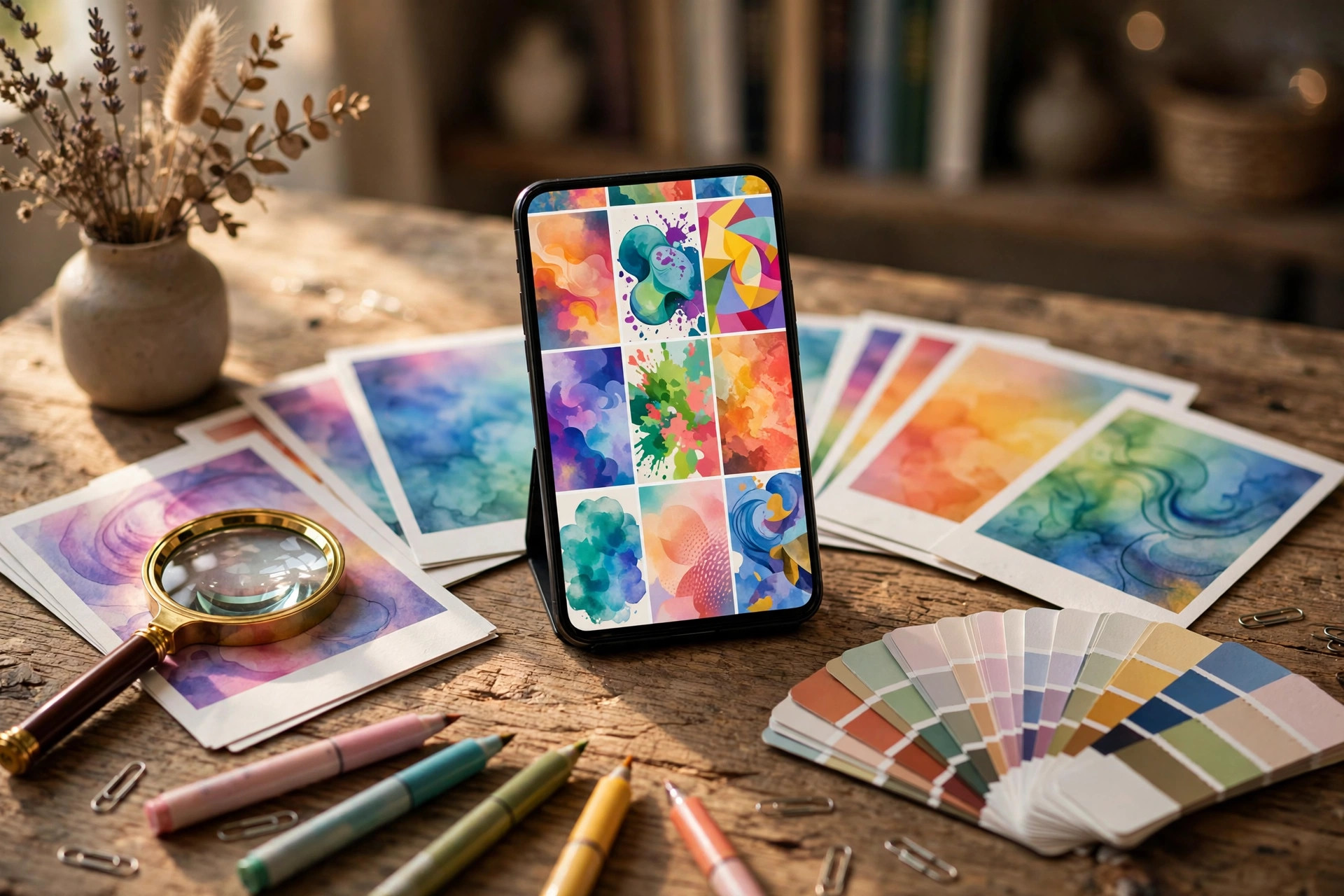
Step 3: Set Up Your Brand Presets Before Touching a Single Template
What: Templates only look branded when your brand exists somewhere to apply. Build your brand preset inside Canva before customising anything.
Exactly how: Open Canva’s Brand panel and save your three brand colours with exact hex codes, your heading and body fonts, and your logo in two versions — full colour and white. Then open one template, replace its colours, fonts, and logo, and save that customised version as your master design. If you have not defined these basics yet, start with our guide on how to create a brand kit for your small business — it takes about two hours and pays off on every template you touch.
Example: A skincare shop saves blush pink #F4C2C2 and charcoal #333333 in its brand panel. From that day on, every template in its 200-design bundle takes both colours in two clicks — the whole bundle becomes an on-brand content library in a single afternoon.
Pro tip: Write your hex codes in a notes app too. Canva’s brand panel is convenient, but a plain list survives every platform change.
Step 4: Customise With the 80/20 Rule
What: Change the 20% of a template that carries 80% of the brand impression — colours, fonts, and photos — and leave the layout exactly alone.
Exactly how: For each template you use: apply your brand colours first (select all, replace), switch the fonts to your two brand typefaces, then swap the stock photos for images that match your niche — free stock from sites like Pexels or Unsplash works well. Do not redesign the layout. The layout is the professional part you paid for. Once your brand preset exists, these three edits take about five minutes per template.
Example: A fitness coach buys a carousel bundle, applies her black-and-neon palette, swaps in real gym photos, and changes every heading to her bold condensed font. Ten carousels customised in under an hour — and her followers assume she hired a designer.
Pro tip: Lock the background and logo layers before editing (select the element, click the padlock icon) so you stop breaking the layout while swapping content. For more of these speed tricks, read 10 Canva hacks every beginner should know.
Step 5: Batch a Week of Content in One Sitting
What: Templates only save time when you use them in batches. One focused session beats seven scattered ones.
Exactly how: Block 90 minutes once a week. Pick seven templates from your bundle for the week’s posts and customise them back-to-back with your saved brand preset and the 80/20 rule — publish nothing yet. Then queue all seven in a free scheduler (Meta Business Suite covers Instagram and Facebook; Buffer’s free plan covers the rest) with captions pre-written. Seven posts done before lunch, and the rest of the week you spend ten minutes a day replying to comments while your feed runs itself.
Example: Monday 9:00 to 10:30: seven Instagram posts customised, captioned, and scheduled. By Friday, the feed looks effortlessly consistent — because the effort was concentrated, not scattered.
Pro tip: Batch the captions too. Write all seven in one document while the templates are fresh in your mind. Caption-writing scattered across the week costs you twice the time.
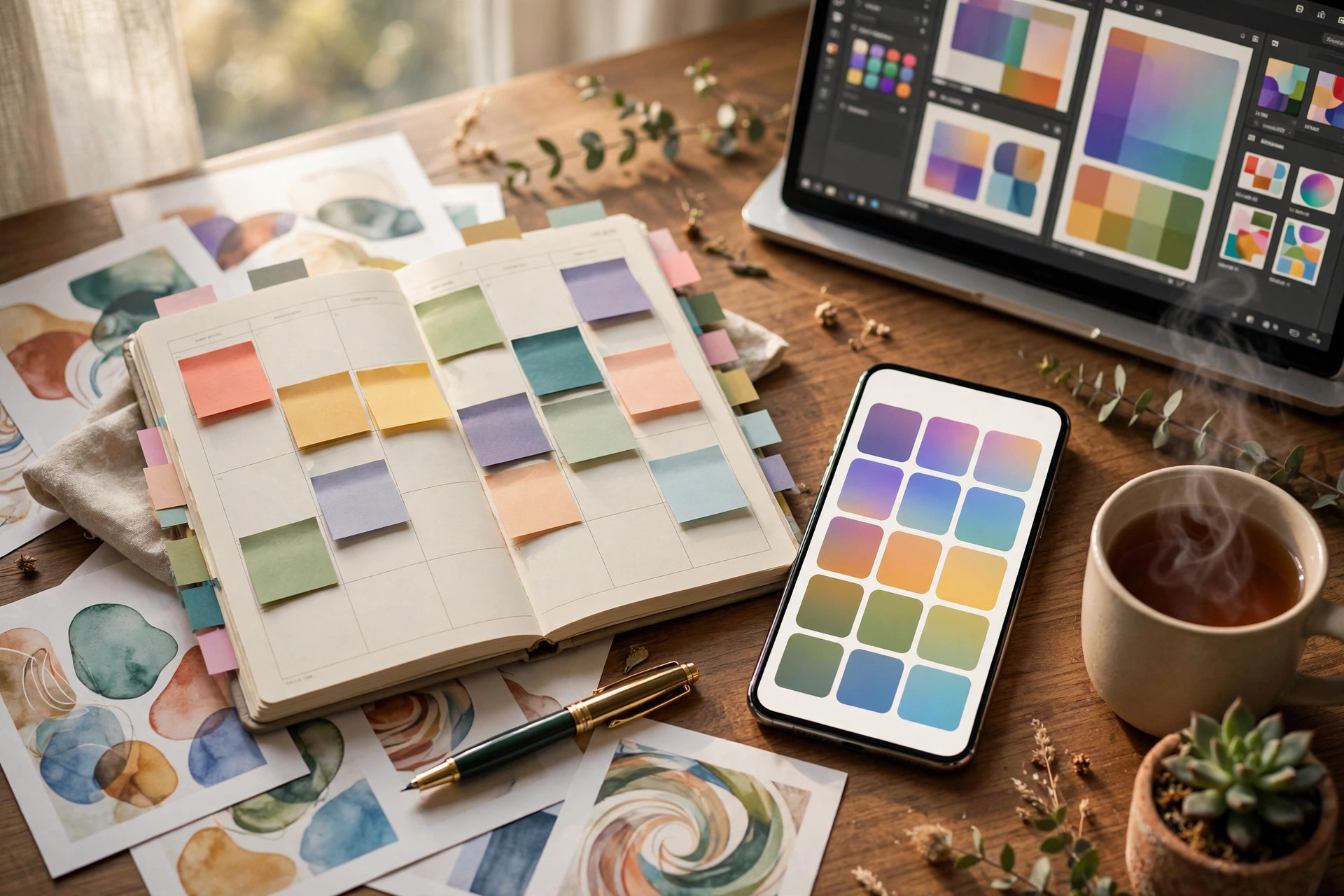
Step 6: Repurpose Every Design Across Platforms
What: One customised template should work three times — Instagram, Facebook, and Pinterest at minimum.
Exactly how: After customising a square Instagram post, duplicate it and resize: a 1080×1920 story version with the same content for Instagram and Facebook stories, and a 1000×1500 Pinterest pin version with a stronger headline. Export all three. Each platform gets native-sized content from the same five minutes of customisation.
Example: A “5 mistakes” carousel becomes the carousel on Instagram, three extracted slides as stories with polls, and one pin per mistake on Pinterest. One template, nine pieces of content, roughly 40 minutes of work.
Pro tip: Rewrite the headline for Pinterest. Search-driven audiences need descriptive titles (“5 Email Marketing Mistakes to Avoid”); Instagram audiences respond to curiosity (“You’re doing this wrong”).
Common Mistakes to Avoid
- Buying five bundles before using one. Master a single 200+ template bundle before shopping again — unused bundles are just expensive bookmarks.
- Posting templates unedited. If followers can recognise the exact template, your brand is invisible. Five minutes of customisation is the minimum viable effort.
- Mixing bundle styles randomly. One bundle, one visual family per campaign. Jumping between three bundles in a week makes your feed look like a mood board, not a brand.
- Ignoring the licence. Most bundles allow commercial use in your own posts but forbid reselling or redistributing the raw templates. Check the terms before sharing files with clients or team members.
Quick Checklist
- Bundle chosen: 100+ unique editable templates, quality previews, “easy” in the reviews
- Brand preset saved in Canva: three colours, two fonts, logo in two versions
- 80/20 customisation workflow: colours, fonts, photos — layout untouched
- 90-minute weekly batching session on the calendar
- Scheduler set up: seven posts customised, captioned, and queued
- Every design repurposed for stories and Pinterest
Social media template bundles are not a shortcut around branding — they are a shortcut around the blank canvas. Bring your brand, batch your week, and your feed starts looking like a team made it. Browse the template collections at HaseenTools for bundles built for exactly this workflow: quality layouts, Canva-ready, and priced for creators who would rather spend their time selling than designing.
One thought on “The Ultimate Guide to Social Media Template Bundles”