





How to Design a Logo in Canva: Step-by-Step for Non-Designers

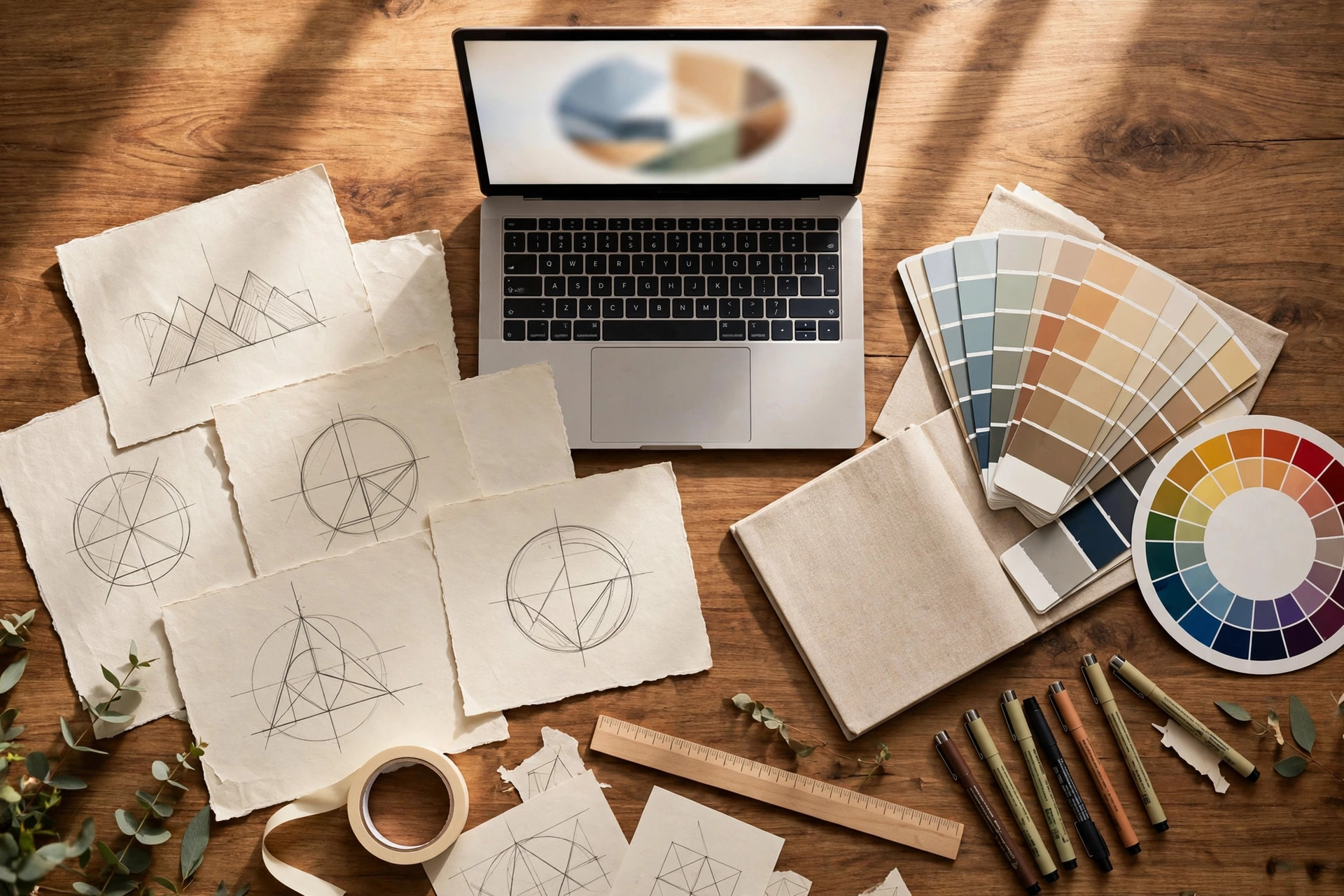
Your business needs a logo, but a professional designer charges hundreds of dollars and you cannot justify that yet. Here is the good news: you can design a clean, professional logo in Canva yourself this afternoon — if you follow a process instead of clicking around hoping for luck. This guide gives you the exact six-step process I would teach a beginner, including the details most tutorials skip.
Step 1: Write Your Brand Down in Three Words
A logo is not a drawing exercise; it is a decision exercise. Before you open Canva, write down three adjectives that describe how your brand should feel — for example “calm, trustworthy, premium” or “playful, bold, affordable.” Every later choice (font, colour, shape) gets judged against these three words. Under them, name your typical customer in one sentence.
Concrete example: a handmade candle shop might choose “warm, natural, elegant” — ruling out neon colours and aggressive fonts before a single design decision.
Pro tip: stuck? Note one word each for the feeling three brands you admire give you — your brand probably wants the same.
Step 2: Pick One of the Four Logo Styles
Nearly every professional logo fits one of four styles — pick one now and you skip most of the aimless browsing that eats beginners’ time: a wordmark (your name in a distinctive font — best for short names), a lettermark/monogram (your initials — best for long names), a combination mark (an icon beside your name — easiest for beginners), or an emblem (text inside a badge — best for traditional brands).
Decide in 60 seconds: short distinctive name, go wordmark; long or generic name, go combination mark. Done.
Concrete example: “BakeHouse” is short enough for a wordmark; “Haseen Abdullah’s Digital Marketing Consultancy” is not — that one wants a monogram (“HA”) or an icon plus a shortened name.
Pro tip: beginners do best with the combination mark. It is the hardest to get wrong and the easiest to adjust later.
Step 3: Choose Fonts and Colours on Purpose
Fonts and colours carry more meaning than the icon ever will. Use a maximum of two fonts — one for the business name and one optional font for a tagline. In Canva, try a bold geometric sans for the name (like Montserrat Bold or Poppins SemiBold) with a clean lighter sans for the tagline. Avoid decorative script fonts for the main name; they are unreadable at small sizes and age fast.
Pick one dominant colour and one supporting colour, maximum. Blue signals trust, green signals natural or fresh, warm orange signals friendly energy, black signals premium. In Canva, click the colour tile and paste a hex code instead of eyeballing sliders — consistency is what makes a logo look professional.
Concrete example: a cleaning service might use #1F6F8B (steady teal) for the name and #F2F2F2 (soft grey) for the tagline — two colours, in hex, used everywhere.
Pro tip: design in black first, then add colour. If it works in pure black and white, it will work on a receipt, a uniform, or a fax.

Step 4: Build It in Canva With a Clean Workspace
Open Canva and search for “logo” templates — but treat them as starting points, not finished products. Create your canvas at 1000 × 1000 pixels, the standard logo workspace that scales cleanly to any size. Build in this order: (1) type your business name and set the font, (2) place a simple line icon above or beside it from Canva’s Elements, (3) add the tagline in the smaller font, (4) set your colours with hex codes, (5) zoom out to 25% — if it reads clearly when tiny, you are close.
Concrete example: a fitness coach named “Peak Performance” might use a bold sans wordmark in #1A1A1A with a simple upward-chevron icon in #FF6B35 above it. Six elements total. Nothing else.
Pro tip: leave generous empty space around every element — crowded logos look amateur.
Step 5: Stress-Test Your Logo Before You Fall in Love With It
Run five tests and be ruthless — a logo that fails any of these will embarrass you later: (1) thumbnail — shrink to 100 px wide; name still readable? (2) monochrome — pure black; still recognisable? (3) inverted — white on dark; still clean? (4) distance — phone at arm’s length; still makes sense? (5) memory — show a friend for five seconds, hide it, ask them to describe it; if they cannot, it is too complicated.
Concrete example: a detailed coffee-cup illustration with steam, beans, and a script font fails tests 1, 2 and 5. A simple cup outline with “Brew & Co” in a bold sans passes all five in under two minutes.
Pro tip: if the logo only works in full colour on a white background, it is not finished. Fix it now; a business card printer will not fix it for you.
Step 6: Export the Right Files for Every Use
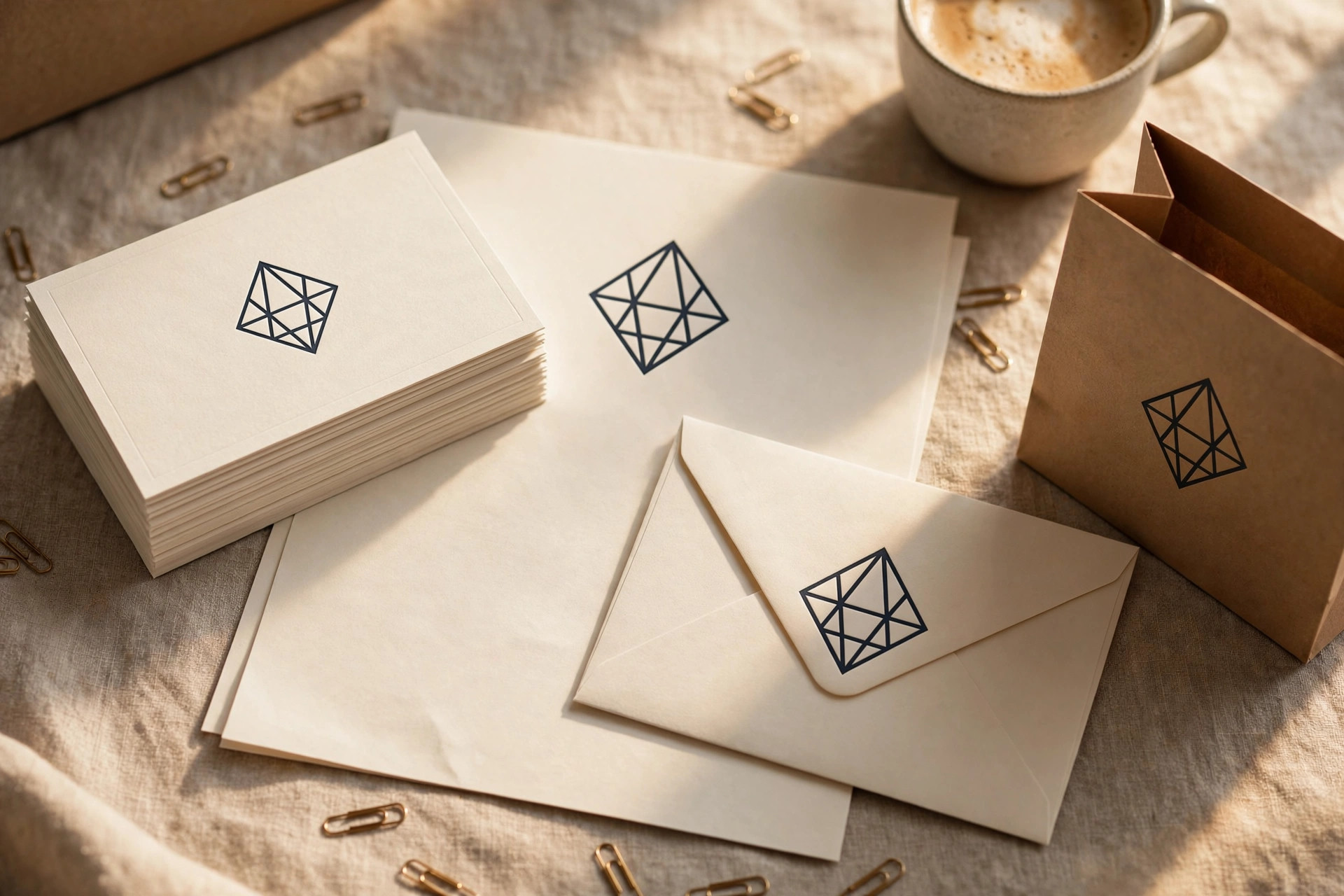
Export three versions and you are covered for 99% of uses: (1) a PNG with transparent background (tick the “Transparent background” box; free users can remove the background in Canva’s background remover) for your website header and documents, (2) a JPG on white for social profiles and anywhere that needs a rectangle, (3) an SVG vector (Canva Pro) for printers and large-format printing — it scales infinitely without losing sharpness. Keep the original Canva file — you will need it for packaging later.
Concrete example: uploading a logo with a white box behind it as your Facebook profile picture is the single most common beginner mistake — it looks broken against Facebook’s circular crop. The transparent PNG fixes it in one click.
Pro tip: name your files properly (brandname-logo-transparent.png) and keep them in one folder. Future you will thank present you.
Once your logo is exported, turn it into a full brand kit.
Common Mistakes to Avoid
– Using more than two fonts. Every extra font makes the logo look messier, not richer. Two is the ceiling.
– Grabbing a detailed stock illustration as your icon. Logos need simple shapes; detailed illustrations vanish at small sizes and often carry licence restrictions you do not want.
– Thin lines and hairline details. Anything thinner than a few pixels disappears on a pen or an embroidered shirt.
– Designing on a coloured or busy background. Start on white. A logo that needs its background to look good is not finished.
Quick Checklist
– [ ] Brand described in three words; customer named in one sentence
– [ ] Logo style picked (wordmark, lettermark, combination, or emblem)
– [ ] Maximum two fonts; one dominant colour plus one supporting colour (hex codes written down)
– [ ] Built on a 1000 × 1000 px Canva canvas with generous spacing
– [ ] Passes all five stress tests (thumbnail, monochrome, inverted, distance, memory)
– [ ] Three exports saved: transparent PNG, JPG on white, SVG (if available)
– [ ] Original Canva file kept for future edits
Your first logo will not be perfect — every designer has redrawn logos hundreds of times. Ship a clean, clear mark now so your business looks credible today, and refine it later when revenue justifies it. And if you want to see how fonts, colours and spacing work together in real products, browse the ready-made Canva template collections at HaseenTools — studying them trains your eye before you design. Prefer a head start? The Logo Bundles category has ready-made marks you can customise in Canva.