





How to Turn One Design Into 10 Digital Products: A Step-by-Step Guide

Most digital product sellers work backwards. They open a blank canvas, spend five hours making one printable, sell it once, then start all over again for the next product. That is why their shops stall at twelve listings while competitors’ shops pass five hundred.
Here is the smarter model: create one strong design, then multiply it into ten products. Ten listings from one creative effort means ten times the search traffic, ten times the chances of being found, and roughly ten times the revenue — without ten times the work. Here is the exact system to do it.
Step 1: Start With One Strong, Versatile Base Design
What to do: Before anything else, create or choose a single design element that is simple, bold, and flexible — a floral illustration, a motivational typography layout, a geometric pattern, or a cute character set.
Exactly how: Open Canva or Illustrator and design at 300 DPI on a large canvas (at least 4500 x 5400 px for print products). Build the design in layers with a transparent background, and export it as a PNG with transparency plus an SVG or EPS vector file. Keep every layer editable — you will rearrange, recolour, and re-crop this file for the next nine products.
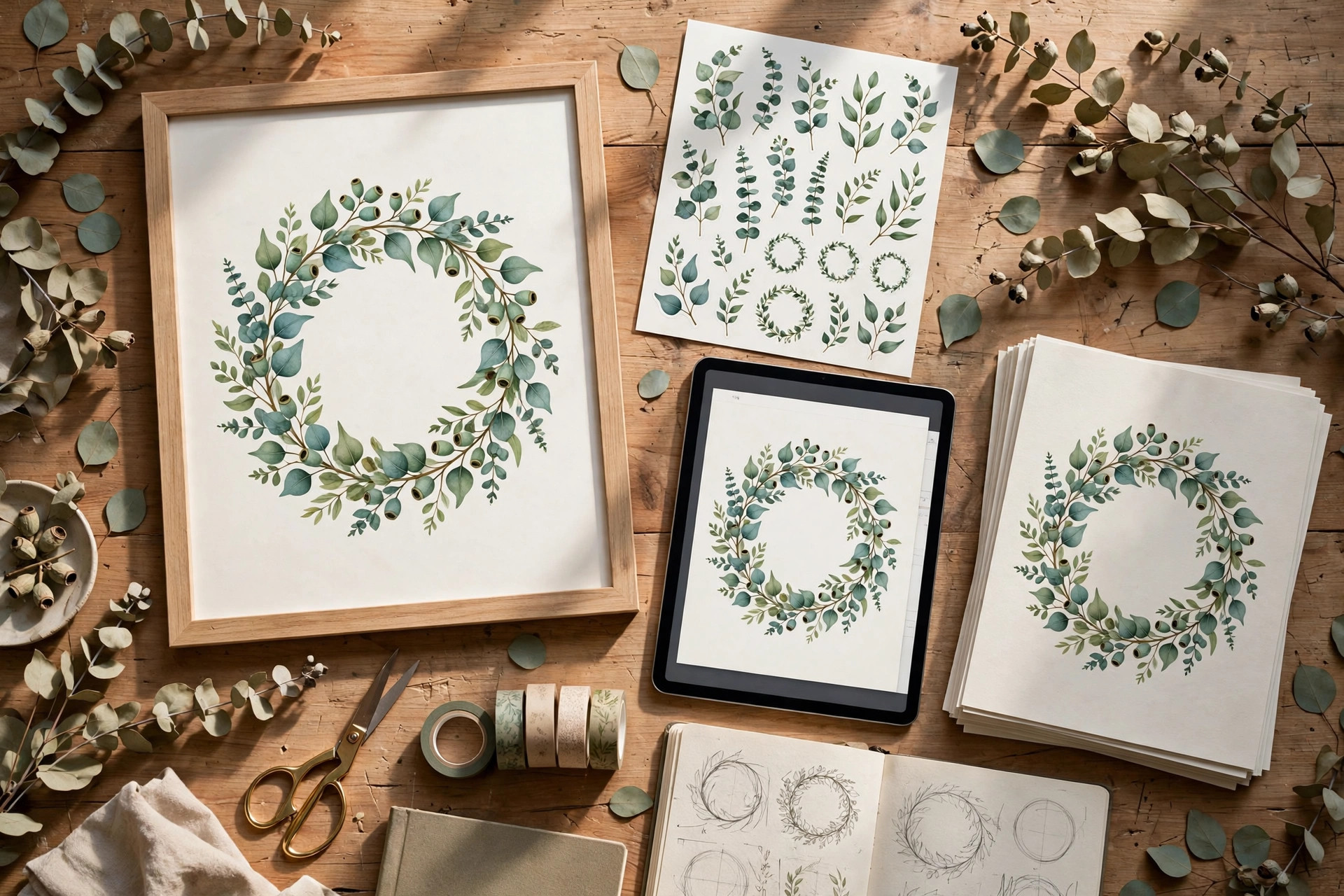
Example: A seller draws one botanical eucalyptus wreath in Procreate, exports it as a transparent PNG at 6000 x 6000 px, and later reuses it for wall art, stickers, planner covers, and social templates without redrawing a single leaf.
Pro tip: Pick designs with thick lines and simple shapes. Fine line-art and tiny details look gorgeous at poster size but turn to mush when shrunk to sticker size — the versatile designs are the ones that survive every format.
Step 2: Launch the Core Product First
What to do: Turn your base design into the flagship product that makes the design’s full detail shine — usually printable wall art or a poster set.
Exactly how: Create 5 to 8 size ratios of the same design (8×10, 11×14, 16×20 inches, plus A4 and A3) so buyers can print anywhere. Save each as a 300 DPI PDF and a high-resolution JPG, zip them together, and write a listing that names every included size. Launch this first because it has the highest perceived value and justifies the design effort on its own.
Example: The eucalyptus wreath becomes “12 Botanical Wall Art Prints — 5 Sizes Included, Instant Download” priced at $12 — and it starts selling before the other nine products even exist.
Pro tip: Test the design’s popularity here first. If the wall art version gets favourites and views, every derivative product has a built-in audience. If it flops, you saved yourself nine product listings — check out our step-by-step guide to creating printable wall art that sells.
Step 3: Shrink It Into Stickers and Die-Cuts
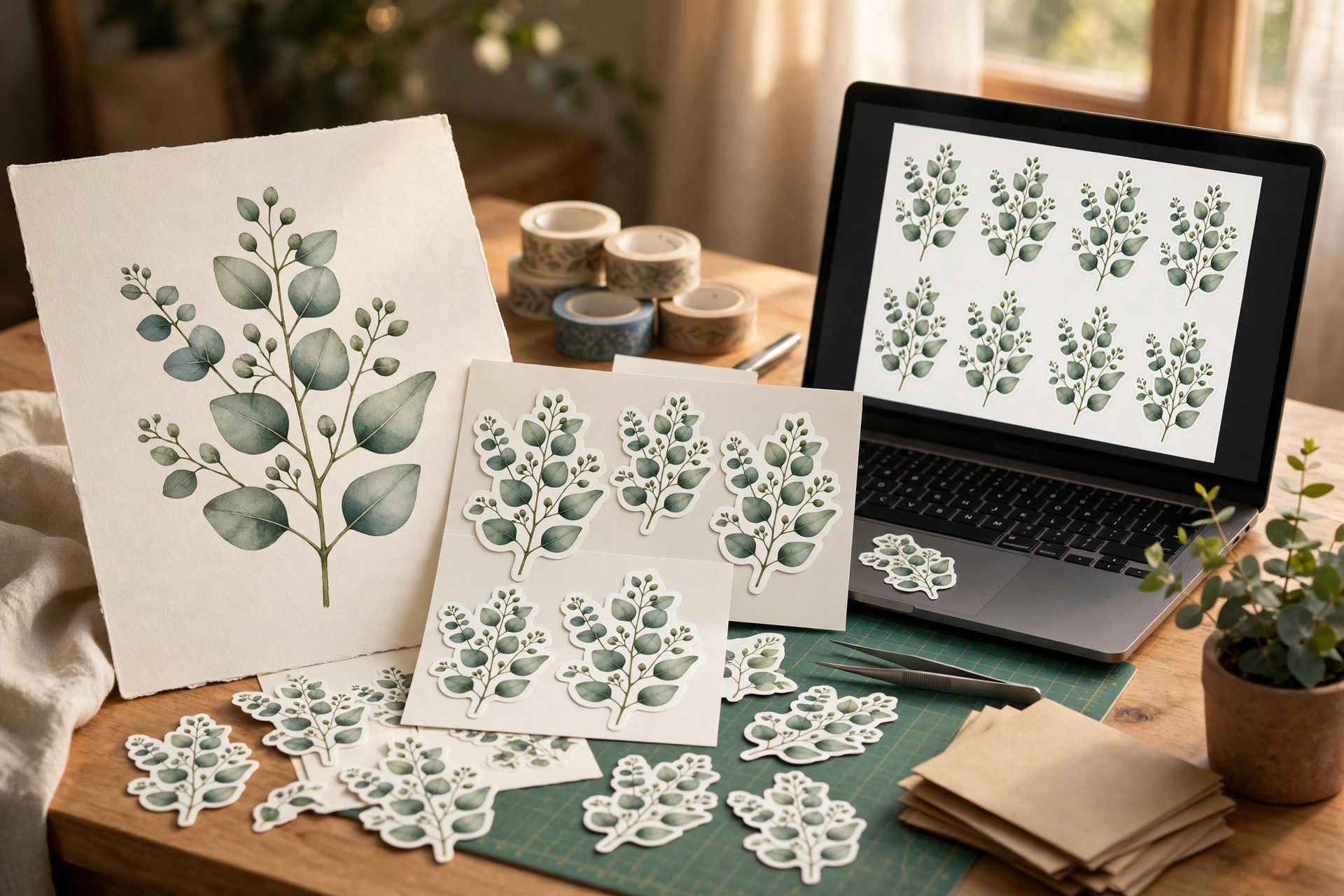
What to do: Convert the same design into a sticker sheet or die-cut sticker pack — one of the fastest-selling digital product categories.
Exactly how: Duplicate the base design in Canva, arrange 8 to 15 elements (or scaled-down versions of the design) on a single A4 or US Letter sheet with a white outline around each shape, and export at 300 DPI. Include both a print-ready PDF and individual PNG files with transparent backgrounds so buyers can also use them with cutting machines like Cricut. Price it between $3 and $6 — stickers are an easy impulse buy.
Example: The eucalyptus wreath splits into a 12-piece sticker sheet: full wreaths, single sprigs, corner borders, and monogram-ready frames — sold as “Botanical Sticker Pack, Printable & Cricut SVG”.
Pro tip: Add a white border of at least 0.12 inches around each sticker. Beginners forget this and buyers complain the designs “bleed off” when printed — the border makes them look store-bought.
Step 4: Reformat It as Social Media Templates
What to do: Use the design as decoration for an Instagram post and story template pack aimed at small business owners.
Exactly how: Open the Canva template dimensions (1080 x 1080 px for posts, 1080 x 1920 px for stories), place your design as a header banner, corner frame, or background wash, and leave the centre empty for the buyer’s own text and photos. Build 15 to 20 matching templates in one colour palette, then share them as a single Canva template link in your listing. List it at $9 to $15 — template buyers pay for consistency.
Example: The wreath becomes a “20 Botanical Instagram Templates — Posts & Stories, Canva Editable” pack aimed at florists, wellness coaches, and handmade shops whose branding already uses greenery.
Pro tip: Include one “how to edit” PDF with three screenshots showing buyers where to click in Canva. It cuts your support messages in half and earns noticeably better reviews.
Step 5: Dress It Up as Planner Covers and Journal Pages
What to do: Wrap the design around digital planner covers, dividers, and dashboard pages — a category with obsessive repeat buyers.
Exactly how: Lay the design across a full-page planner cover (7.5 x 10.5 inches for classic planners, or 1620 x 2160 px for GoodNotes), create 4 to 6 colour variations by shifting the palette (sage green, terracotta, blush pink, charcoal), and export each as a hyperlinked-ready PDF page. Bundle 6 covers plus 4 matching divider pages into one $8 to $12 product. Planner buyers collect covers like trading cards — variations sell the bundle.
Example: The same wreath ships as “6 Botanical Digital Planner Covers — GoodNotes & PDF, 4 Colour Themes”, and the listing’s preview images show the covers on actual tablet mockups so buyers see the finished look.
Pro tip: Never upload planner pages as plain PNGs. Buyers expect a ready-to-import PDF with correct page size — PNGs get one-star reviews with “doesn’t fit my planner”.
Step 6: Assemble a Themed Mega-Bundle
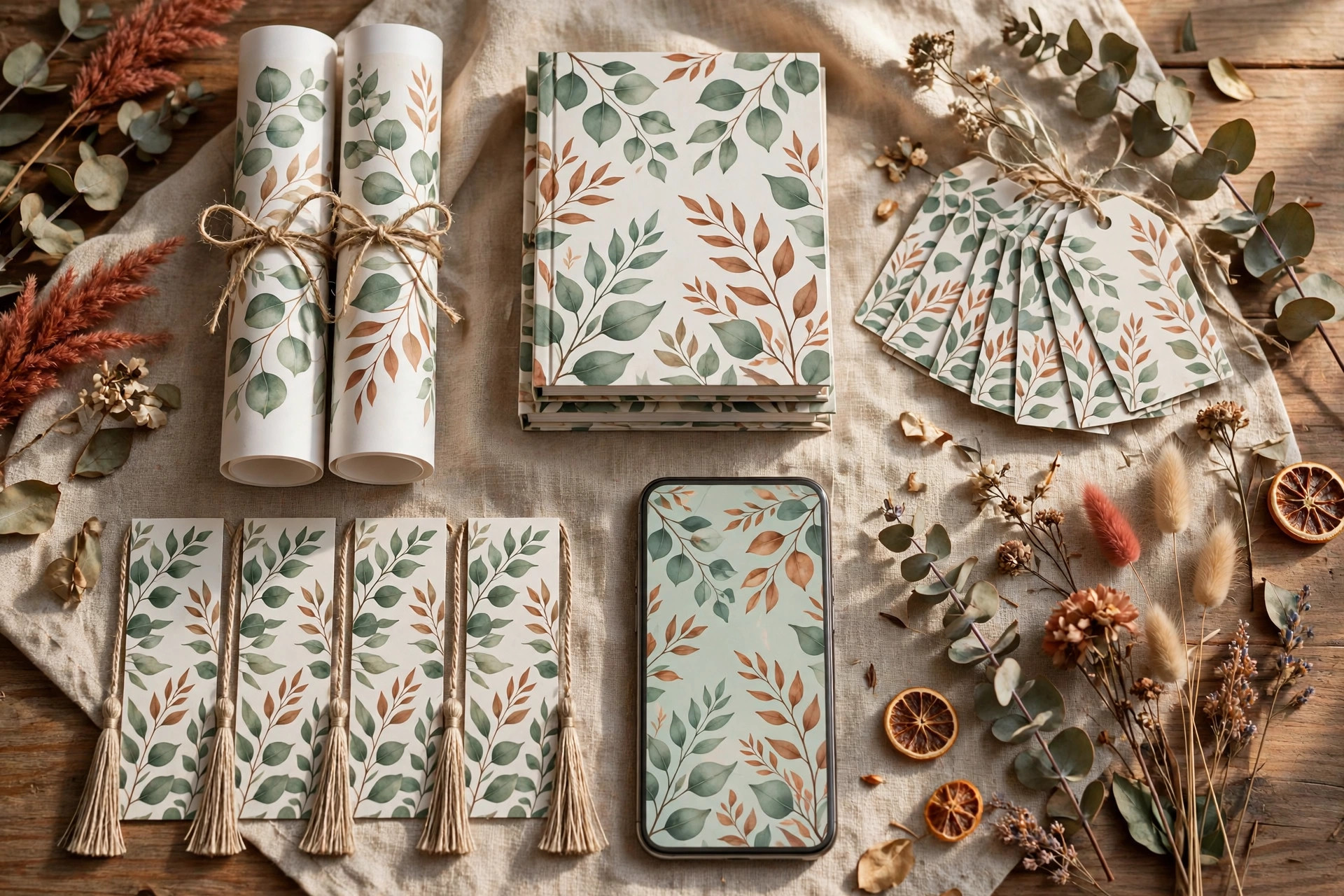
What to do: Package everything — wall art, stickers, templates, planner covers — into one themed bundle at a bundle price.
Exactly how: Collect the files from Steps 2 through 5 (plus any extras like bookmarks, phone wallpapers, or gift tags you can spin off in minutes), organise them into clearly labelled folders, and price the bundle at 40 to 60 percent less than the combined individual prices — for example, $29 for products worth $52 individually. Write the listing to show the math explicitly: buyers love seeing the discount spelled out. Bundles routinely raise average order value for digital shops.
Example: “The Botanical Creator Bundle — 60+ Files: Wall Art, Stickers, Instagram Templates & Planner Covers” becomes the shop’s bestseller because every previous product now cross-sells this one listing.
Pro tip: Make the bundle the only product with a preview video — a 20-second screen recording flipping through the folders. It outsells static preview images for bundles every time.
Common Mistakes to Avoid
- Designing too detailed for reuse. A design with twelve tiny elements only works at poster size. Build bold, layered, and scalable from the start.
- Launching the weakest format first. If you start with phone wallpapers instead of wall art, you never learn whether the design has real demand — lead with the high-value flagship.
- Skipping the transparent PNG. Every derivative product needs the design on transparency. Exporting it late means rebuilding layouts from scratch.
- Pricing the bundle too close to the singles. If the bundle is only $3 cheaper than buying everything separately, nobody feels the deal — keep the gap at 40 percent or more.
Quick Checklist
- One layered base design exported as transparent PNG + vector file
- Flagship wall art set in 5+ sizes, launched and tested first
- Sticker sheet with white borders and Cricut-ready files
- 15–20 matching Canva social media templates with an edit guide
- Planner cover set in 4+ colour variations as import-ready PDFs
- Themed mega-bundle priced 40–60% below the combined singles
One Design, Ten Products, One Growing Shop
The sellers with five hundred listings are not five hundred times more creative than you — they are just multiplying instead of starting over. Build this one-design system once, and every new design you ever make can follow the same six steps. Start with your strongest design this week, and browse the ready-made templates and bundles at Haseen Tools to see the system in action.