





How to Create and Sell a Printable Chore Chart for Kids in Canva: A Step-by-Step Guide

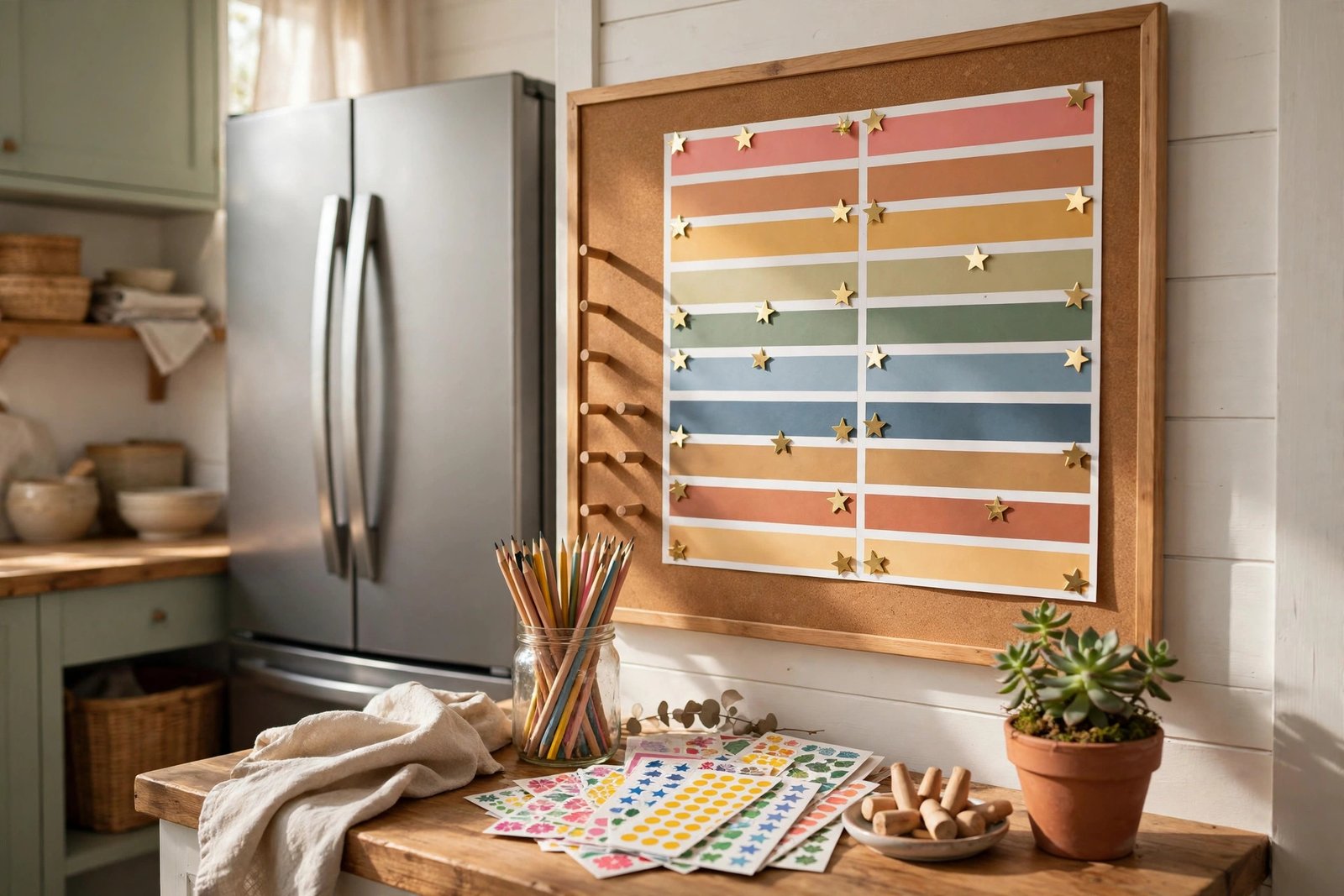
A printable chore chart for kids only works when a child can read it in five seconds and actually wants to earn the next star. Most charts fail both tests: too many jobs, tiny boxes, and no clear reward at the end of the week.
This guide fixes that. You will design a printable chore chart for kids in Canva in one focused session, then turn the same file into a product parents will pay for, with the right paper sizes, an editable version, and a listing that answers every question before it is asked. No design degree is needed, and no expensive software is required.
Step 1: Pick One Age Group and Five to Seven Real Jobs
What to do: Choose a single age group before you design anything. A chart for a four-year-old and a chart for a ten-year-old are different products, and a chart that tries to serve both will serve neither.
Exactly how: Pick one band — ages 3 to 5, ages 6 to 8, or ages 9 to 12 — then list five to seven jobs the child can finish without adult help in under 15 minutes each. Write each job as one short verb phrase: “Make bed”, “Feed pet”, “Put toys away”. If a job needs a ladder, a knife, or constant supervision, it does not belong on a child’s chart.
Example: For ages 4 to 6, use: make bed, put toys in the box, put dirty clothes in the basket, wipe the table, feed the pet with one measured scoop, and put shoes by the door. For ages 9 to 12, swap in: load the dishwasher, take out the rubbish, vacuum one room, water the plants, and pack the school bag the night before.
Pro tip: Let the child pick two of the jobs. A job a child chose is a job a child will defend, and that single choice cuts nagging more than any star system will.
Step 2: Build a One-Page Weekly Grid in Canva
What to do: Build the chart as one page with seven day columns, one row per job, and one reward column on the right. If the chart spills onto a second page, parents will not print it twice.
Exactly how: In Canva, create a custom size of 2480 by 3508 pixels for A4, then duplicate the design at 2550 by 3300 pixels for US Letter. Leave a 120-pixel safe margin on every side so home printers do not clip the edges. Put the child’s name at the top, the days Monday to Sunday across the top, and keep each day box at least 200 pixels wide so a sticker or a tick fits inside it.
Example: Six jobs plus a header row gives seven rows. At A4 size, each row is roughly 400 pixels tall, which leaves room for a 28-point job label and a tick box a child can actually mark with a crayon.
Pro tip: Build the grid once with Canva’s table tool or aligned rectangles, then duplicate the page for each age version. Changing the jobs takes ten minutes; rebuilding the grid takes an hour.

Step 3: Make the Chart Visual With Icons, Colour, and Stars
What to do: Make every row readable without reading. A pre-reader should know the job from the picture, and a tired parent should spot an empty row from across the kitchen.
Exactly how: Give every chore one icon, one colour, and one short verb. Search Canva Elements for a simple flat icon for each job — a bed, a toy box, a water can — and use the same icon style throughout. Colour-code by category, not by decoration: blue for bedroom jobs, green for kitchen jobs, orange for pet and outdoor jobs. Keep job labels at 28 points or larger, and put a star outline in the reward column for each completed day.
Example: The “Feed pet” row gets a pet-bowl icon in orange, the words “Feed pet”, and seven star outlines. A five-year-old sees the bowl, knows the job, and knows that seven stars earn the Friday reward. No reading lesson is required.
Pro tip: Print a test copy in greyscale. If two rows look identical without colour, the icons are doing no work — swap one icon until every row is distinct in black and white too. Bold, simple outlines are what make printable colouring pages easy to read, as shown in the guide to creating and selling digital colouring books: https://haseentools.com/2026/10/23/how-to-create-and-sell-digital-colouring-books-a-step-by-step-beginners-guide/
Step 4: Create the Print Version and the Editable Version
What to do: Deliver two versions in one product: a fixed PDF that prints perfectly, and an editable Canva template link so buyers can change names and jobs. One version alone loses half your buyers.
Exactly how: Export the finished design from Canva as PDF Print at 300 DPI in both A4 and US Letter sizes. Then duplicate the Canva file, replace the child’s name with “Your child’s name”, and use Share, then Template link, to create an editable copy link. Add a one-page instructions sheet to the download: print at 100 percent scale, laminate the chart or slip it into a clear sleeve, and mark it with a dry-erase marker so it can be reused every week. The same print-test discipline that makes classroom printables reliable applies here, as explained in the guide on printable worksheets: https://haseentools.com/2026/10/18/how-teachers-can-use-printable-worksheets-in-the-classroom/
Example: A buyer in the United States prints the Letter PDF, laminates it for under two dollars at a print shop, and reuses it for 52 weeks. A buyer in the United Kingdom prints the A4 PDF at home. Both buyers edit the name in Canva in under a minute, and neither one emails you asking for a different paper size.
Pro tip: Name every file exactly what it is, for example “Chore-Chart-Kids-A4.pdf” and “Chore-Chart-Kids-US-Letter.pdf”. Buyers find files by name in their downloads folder, and clear names cut support messages to almost zero.
Step 5: Package, Price, and Write a Listing That Answers Everything
What to do: Package the files, price inside the proven band for a single printable, and write a listing that states the audience, the files, and the reward system in the first three lines.
Exactly how: Zip the two PDFs, the Canva template link in a one-page PDF, and the instructions sheet into one download under 20 MB. Price a single chart at 4 to 7 dollars, or 8 to 12 dollars for a bundle of three age versions. Open the listing with the audience and the outcome: “A printable chore chart for kids ages 4 to 8 — one weekly page, editable in Canva, with a star reward tracker.” List every file by name, state that it is a digital download with no physical item shipped, and add a personal-use licence line.
Example: A listing titled “Printable Chore Chart for Kids | Editable Canva Template | Weekly Reward Chart Ages 4-8” tells a searching parent the format, the tool, and the age range before she clicks. A listing titled “Cute Chart” tells her nothing, and she scrolls past it.
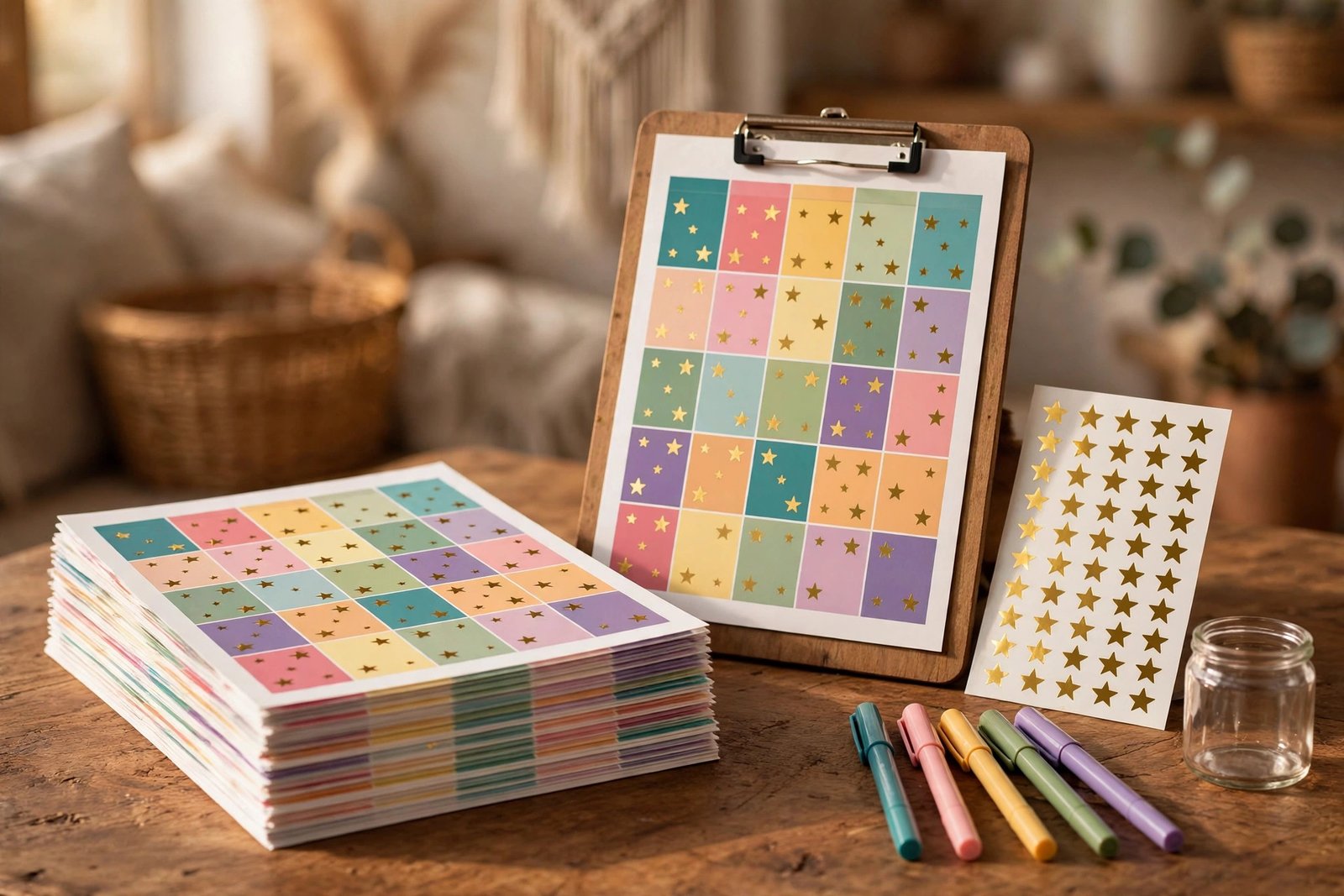
Pro tip: Make the first listing image a mockup of the printed chart on a fridge or a clipboard, not a flat screenshot. Parents buy the life the chart creates — a calmer morning — and a real-world mockup sells that life in three seconds.
Step 6: Test Print It, Watch a Real Child Use It, Then Improve It
What to do: Test the chart with a real child for one full week before you sell it. A design that looks perfect on screen can fail on paper in five minutes.
Exactly how: Print one copy at 100 percent scale, hand a dry-erase marker to a real child, and watch for a full week before you call the design finished. Note three things each day: which boxes were too small to mark, which icons the child asked about, and which day the chart was ignored. Fix only the worst problem, reprint once, and ship version one. Do not redesign for a month on guesses.
Example: If the child ignores Wednesday every week, the problem is usually the reward, not the chart. Move the reward to Wednesday, keep the same jobs, and watch the same chart suddenly work. One small change beats a full redesign.
Pro tip: Keep a version note inside the file, such as “v1.1 — larger tick boxes”. When buyers ask for a tweak, you will know exactly what changed, and returning buyers will trust that the product keeps improving.
Common Mistakes to Avoid
- Cramming twelve jobs onto one page. Five to seven jobs get done. Twelve jobs get ignored, and the chart ends up in a drawer by Tuesday.
- Using tiny text to fit more in. Anything under 24 points is unreadable for a child standing a metre from the fridge. Cut a job before you shrink the type.
- Selling only a fixed PDF. Half your buyers want to change the name and the jobs. A Canva template link costs you two minutes and doubles the product’s value.
- Skipping the test print. Screens hide clipped margins, pale colours, and boxes too small for a crayon. One home printout catches every one of them before a buyer does.
Quick Checklist
- One age group chosen, with five to seven jobs a child can finish alone
- One-page weekly grid in A4 and US Letter, with a 120-pixel safe margin
- One icon, one colour, and one short verb per chore, tested in greyscale
- PDF Print files at 300 DPI plus an editable Canva template link
- Instructions sheet: print at 100 percent, laminate, reuse with a dry-erase marker
- Files clearly named, zipped under 20 MB, with a personal-use licence
- Priced at 4 to 7 dollars, or 8 to 12 dollars as a three-age bundle
- One full week of real-child testing done, worst problem fixed
A chart a child can follow without being reminded is worth more than a pretty poster on the fridge. Build one age version this week, test it for seven days, then add the next age group from the same grid. When you want a head start on the design, browse the ready-made Canva templates in the Haseen Tools shop: https://haseentools.com/shop/ — and start page one tonight.
One thought on “How to Create and Sell a Printable Chore Chart for Kids in Canva: A Step-by-Step Guide”