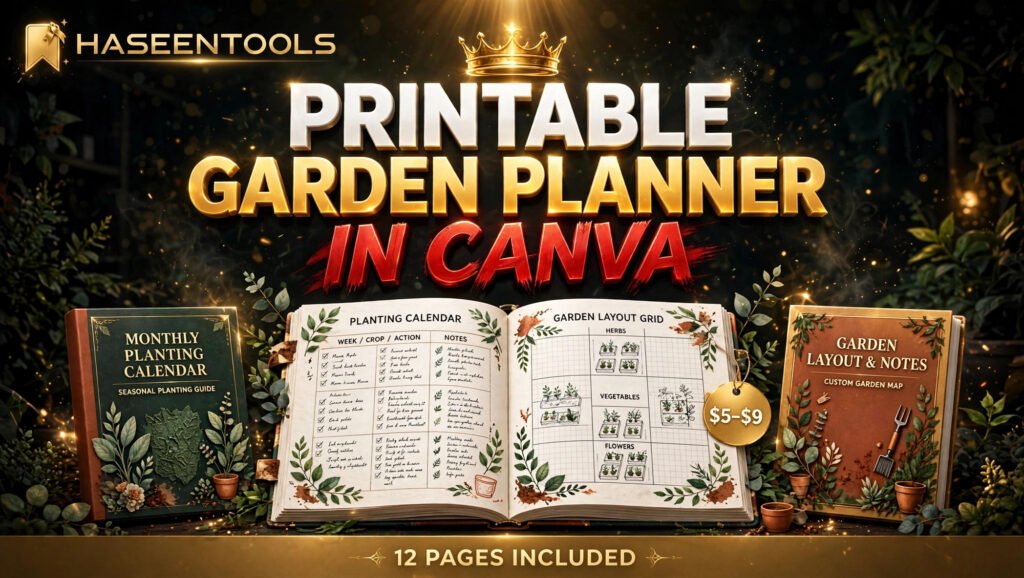


How to Create and Sell a Digital Workbook in Canva: A Step-by-Step Guide


Your last online course probably died on slide twelve. You bought it with good intentions, watched three videos, and never opened it again. A workbook is different. It asks the buyer to do something, and doing is what creates change.
That is why a digital workbook in Canva is one of the easiest digital products a beginner can sell. It is useful, it is visual, and you can build the whole thing with free tools in a single weekend. In this guide, you will learn how to create and sell a digital workbook in Canva from a blank page to your first sale — exact sizes, page counts and prices included. No design degree needed. Just one clear idea and a few focused hours.
What Is a Digital Workbook in Canva?
A digital workbook in Canva is a PDF that teaches one skill through lessons, exercises and writing space, designed in Canva and sold online. Unlike an ebook, which is mostly read, a workbook is used: buyers fill in answers, tick checklists and complete tasks, so they finish with a result.
A workbook is not a prettier ebook. An ebook explains; a workbook trains. Every page should move the buyer one small step closer to a result they can feel: a finished budget, a launched listing, a week of planned meals.
A digital workbook in Canva sells well for coaches, teachers and freelancers — anyone who teaches a process. A fitness coach sells a 4-week training workbook; a teacher sells a phonics practice workbook. The pattern is always the same: one skill, broken into small actions, with space to write.
But here is the part most people miss: buyers do not pay for pages. They pay for the finished result. A 20-page workbook that gets a buyer their first sale beats a 120-page workbook that sits in a downloads folder.
Step 1: Pick One Buyer and One Result
What to do: Choose a single buyer and the single result your workbook will deliver for them.
Exactly how: Write two sentences before you open Canva. Sentence one names the buyer: “Busy mums who want a calmer morning routine.” Sentence two names the result: “A 7-day morning routine they can actually follow.” Every decision in your digital workbook in Canva flows from these two sentences — if a page does not serve the result, it does not go in.
Example: A social media manager selling a “30-day content workbook” knows her buyer (small business owners) and her result (30 days of posts planned in one sitting). One buyer, one result, one workbook.
Pro Tip: Test the idea in one sentence on a real person. If they say “I need that,” you have a workbook. If they say “that sounds nice,” keep narrowing until someone needs it.
Step 2: Outline Your Workbook Before You Open Canva
What to do: Plan every page on paper first, so Canva is assembly, not thinking.
Exactly how: Sketch a simple page map in a notebook or a Google Doc: cover, a “how to use this workbook” page, then 4 to 6 lesson chapters. Each chapter follows the same rhythm: one short lesson, one worked example, then one exercise page with writing space. End with a final checklist and a “your next step” page. Aim for 20 to 40 pages — enough to feel complete, short enough to finish in a weekend.
Example: A budget workbook: cover, how to use it, track spending for 7 days, sort needs from wants, build your first monthly budget, cut three costs, final checklist. Six chapters, 28 pages, one clear result.
Common Mistake: Opening Canva with no outline and designing page by page. You will end up with 60 pretty pages that teach nothing in order. Outline first, design second — always.
Step 3: Design Your Digital Workbook in Canva
What to do: Build the pages in Canva using one consistent style system.
Exactly how: Open Canva and create a custom design at A4 or US Letter size (8.5 x 11 inches) — the two sizes buyers expect for a printable workbook. Pick three colours and two fonts, then use them on every page: one font for headings, one for body text. Design one lesson page and one exercise page as masters, then duplicate them for the rest of the workbook. The design stage is where your digital workbook in Canva starts to look like a real product, so keep the layout calm: plenty of white space, one idea per page.
Example: A coach building a habit workbook sets her style in 10 minutes — cream background, dark green headings, one accent orange — then duplicates her master pages into a 32-page workbook in about 3 hours. If you are new to Canva, our guide on how to use Canva templates to grow your business shows the same build-once, reuse-often system.
Pro Tip: Design the exercise pages first and the cover last. The cover is the fun part, but the exercise pages are the product. If the exercises feel good to fill in, the cover almost designs itself.

Step 4: Make It Interactive and Easy to Use
What to do: Give buyers pages they can write on, tick off and return to — on paper or on a tablet.
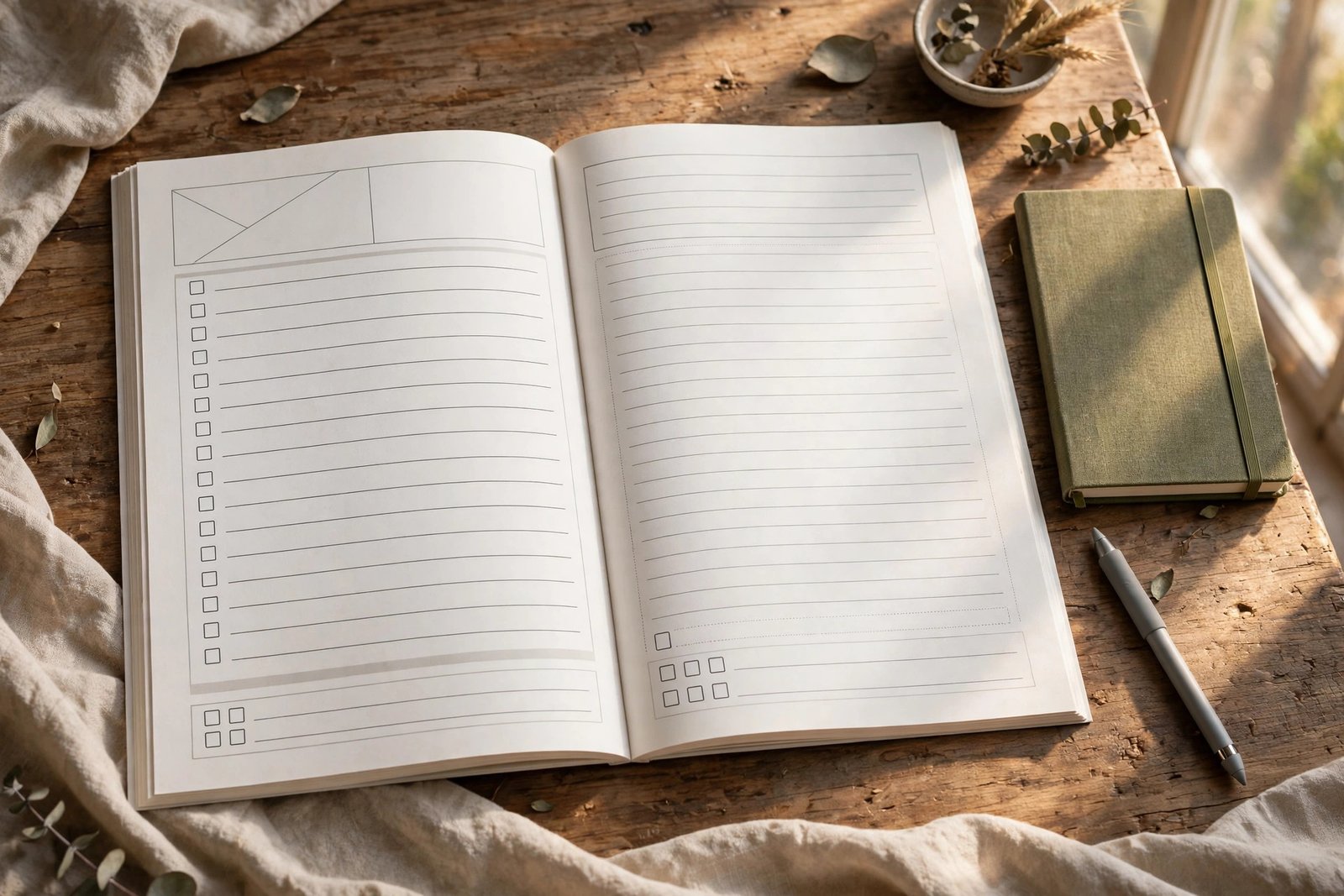
Exactly how: Add three page types that make a workbook feel like a workbook. First, fill-in pages: lined writing space, tables with empty rows, boxes for short answers. Second, trackers: a 7-day or 30-day grid to tick each completed day. Third, checklists: a box beside every action step. A fillable digital workbook in Canva is worth more than a flat one, so add form fields with a free tool like PDFescape if you want tablet users to type straight into the PDF. If your workbook will live on a tablet, test every page on a real device first — a digital journal in Canva uses the same idea.
Example: A study-skills workbook includes a weekly planner page, a “my top 3 goals” page, and a 30-day revision tracker. Buyers print the tracker three times and use it for a whole term — one page, used again and again.
Pro Tip: Leave more writing space than feels necessary. Beginners cram pages full; buyers love blank space because it means room to think. If a page looks empty to you, it probably feels generous to them.
Step 5: Export, Package and Price It
What to do: Turn your Canva design into a clean download pack and set a price you can explain in one sentence.
Exactly how: Export your digital workbook in Canva as PDF Print for the printable version — it keeps text sharp at home-printer quality. Export a second copy as PDF Standard for screen use, and add a short README that tells buyers what is inside, how to print it, and the licence in plain words: personal use only, no reselling, no sharing the file. For price, compare five similar workbooks first, then price the result, not your hours. A focused 25 to 40-page workbook usually sells between $7 and $15; a larger pack with bonus trackers can sell for $19 to $29. Pick one price, justify it in one sentence (“30 days of planned meals for less than one takeaway”), and stop second-guessing.
Example: A first-time seller lists a 28-page meal-planning workbook at $9 and sells 40 copies in the first month — $360 from one weekend of work.
Common Mistake: Pricing from your effort instead of the result. A workbook that took you 20 hours but saves the buyer 5 minutes a day for a year is worth more than a workbook that took 40 hours and changes nothing. Price the outcome.
Step 6: List It and Make Your First Sales
What to do: Put the workbook where buyers can find it, with a listing that shows the inside, not just the cover.
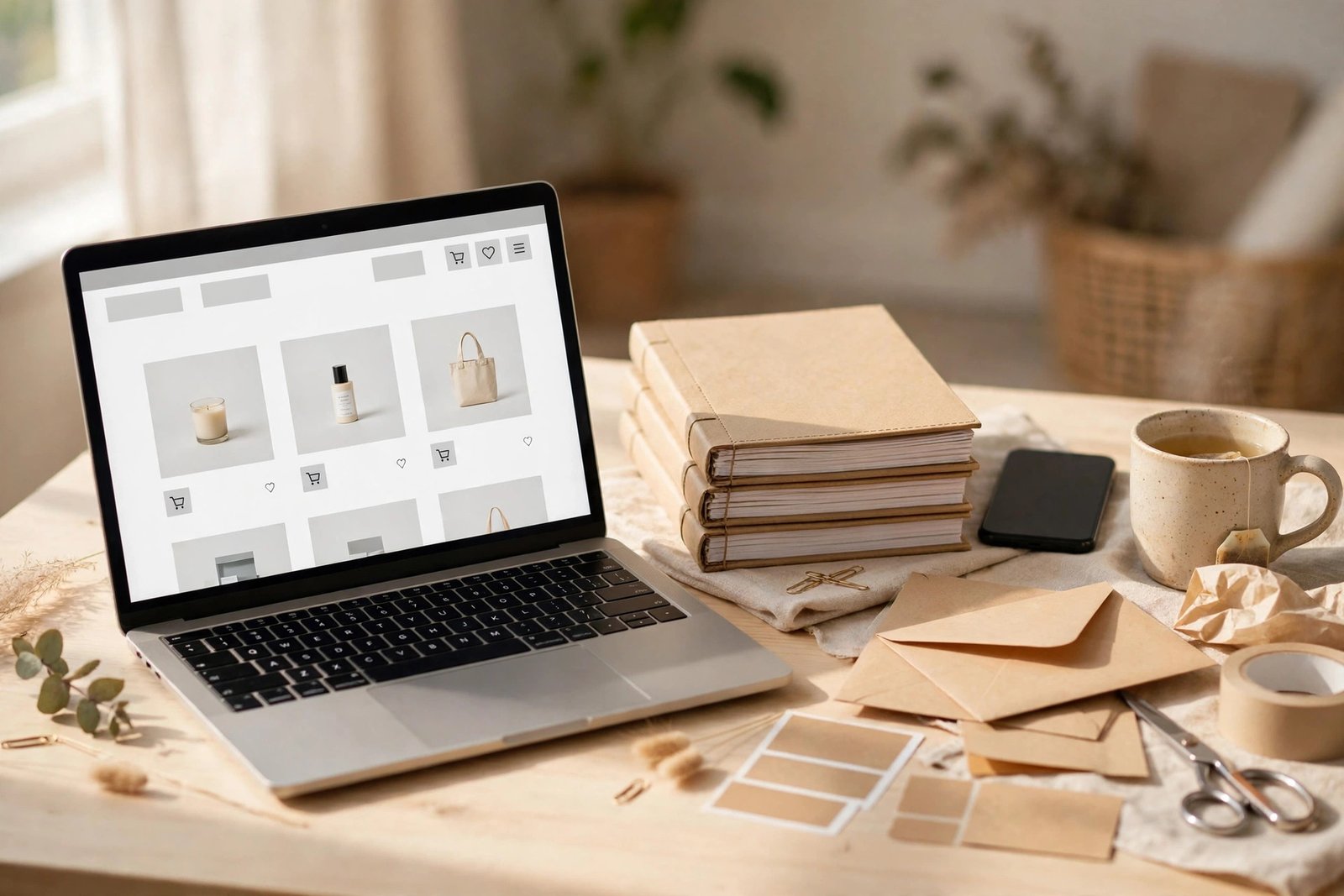
Exactly how: List your digital workbook in Canva on your own website or a marketplace like Etsy. Your listing needs six things: a clear title with the result, 6 to 8 preview images showing real inside pages (not just the cover), the page count, the file format and size, what the buyer will be able to do after finishing it, and the licence in plain words. Then send it to ten real people first — friends, followers, past customers — and ask for honest feedback before you spend money on ads. Fix the top three complaints, then promote it where your buyer already spends time: Pinterest, a short Reel showing the pages, or a free 5-page sample as a lead magnet.
Example: A teacher lists a phonics workbook on her own site, then pins three preview images to Pinterest. One pin shows the inside tracker page. It brings 12 sales in its first week — because buyers could see the workbook working before they paid.
Pro Tip: Your first ten buyers are your best marketing. Ask each one what almost stopped them buying, then fix that exact thing in your listing. Most sellers never ask, so most listings keep the same flaw for years.
Workbook vs Ebook vs Course: Which One Should You Sell?
Before you build, it helps to know how a digital workbook in Canva compares with the other two formats beginners usually consider.
| Format | Best for | Time to build | Typical price | Buyer effort |
|---|---|---|---|---|
| Digital workbook | Teaching one skill with practice | One weekend | $7–$29 | High — they do the work |
| Ebook | Explaining a topic in depth | One week | $5–$19 | Low — they read |
| Mini course | Teaching with video and feedback | Two to four weeks | $29–$99 | Medium — they watch and practise |
A workbook wins when the buyer wants a result, not just information — and on speed: you can finish one in a weekend, while a course takes a month.
Common Mistakes to Avoid
- Building your digital workbook in Canva before choosing a buyer. A workbook for “everyone” helps no one. One buyer, one result, then design.
- Designing 100 pages before testing one. Print one exercise page and fill it in yourself. A flaw copied 30 times is 30 flaws.
- Using six colours and five fonts. Three colours and two fonts, used every time, feel calm and professional.
- Hiding the inside pages in your listing. Buyers buy the exercises, not the cover. Show at least five real inside pages.
- Forgetting the licence and the “how to use it” page. Buyers ask “how do I print this?” more than any other question. Answer it in the pack.
- Pricing from your hours alone. Price the result your buyer walks away with, not the weekend you spent building it.
Quick Checklist: Your Digital Workbook in Canva
- One buyer and one result written in two sentences.
- Page map outlined: cover, how-to page, 4–6 chapters, final checklist.
- Style system fixed: 3 colours, 2 fonts, A4 or US Letter size.
- Master lesson and exercise pages designed, then duplicated.
- Fill-in pages, trackers and checklists included — with generous writing space.
- PDF Print exported, README and plain-words licence added.
- Price set from five comparable workbooks, justified in one sentence.
- Listing live with 6–8 previews, page count, format and licence.
- Sent to 10 real buyers first; top 3 complaints fixed.
Frequently Asked Questions
Can I sell a digital workbook in Canva if I only have the free plan?
Yes. You can design and sell a digital workbook in Canva on the free plan, as long as you only use free elements or your own graphics. Canva Pro adds brand kits and more templates, which speed things up, but they are not required for your first workbook. Check the licence of any stock photo or graphic before you list it.
How many pages should a digital workbook be?
For a first workbook, 20 to 40 pages is the sweet spot — enough for 4 to 6 chapters with exercises, and short enough that buyers actually finish it. A workbook buyers finish gets recommended; a 120-page one usually sits in a downloads folder.
What size should the pages in a digital workbook in Canva be?
A4 portrait and US Letter portrait are the two sizes buyers expect, because both print cleanly at home. Pick one size for the whole workbook and keep the same margins on every page. If your buyers mostly use tablets, test your pages on a tablet first — small text that looks fine on a laptop can be hard to read at arm’s length.
Do I need design experience to make a workbook that sells?
No. Buyers pay for clarity and results, not fancy design. A clean workbook with two fonts, three colours and plenty of writing space outsells a flashy one that is hard to use. Start from a Canva template and customise it — our 10 Canva hacks every beginner should know will save you hours on your first build.
Where is the best place to sell a digital workbook?
Your own website gives you the most control and the highest profit per sale, because there are no marketplace fees. Marketplaces like Etsy bring built-in traffic but take a cut of every sale. Many sellers do both: list on a marketplace for discovery, sell on their own site for full profit. Keep the price and file version the same everywhere.
Conclusion: Start With One Workbook, Not a Whole Shop
A digital workbook in Canva works when it is short, specific and finished. You do not need a design degree, a big audience or a perfect idea. You need one buyer, one result, and a workbook that helps them reach it.
- Pick one buyer and one result before you open Canva.
- Outline first, then design from two master pages.
- Build in writing space, trackers and checklists — that is the product.
- Export a clean PDF pack, price the result, and list it with real inside previews.
Your next step is small and concrete: write your two sentences today — who it is for, and what it helps them do. Then outline your six chapters tonight. By the weekend, you could have a product for sale. Browse the Haseen Tools shop for templates and guides that can speed up your next product, and tell us in the comments: what workbook will you build first?