





How to Create and Sell a Digital Journal in Canva: A Step-by-Step Guide


Your last journal probably died on page nine. You bought it with good intentions, wrote in it for a week, and then it sat in a drawer while life moved on. A digital journal in Canva can break that pattern, because it lives on the tablet you already carry, it never runs out of pages, and you can build one in a weekend without design training. This guide shows you how to plan it, design it, test it, and sell it, step by step, so buyers get a journal they will actually open.
But here is the part most people miss: a pretty cover does not sell a journal. A journal that is easy to use on day 30 sells it. Keep that test in mind through every step below.
What Is a Digital Journal in Canva?
A digital journal in Canva is a PDF journal designed in Canva for use on a tablet with a stylus, usually in an app such as GoodNotes or Notability, with tappable tabs, lined or dotted writing pages, prompts, and trackers. Buyers download the PDF, import it into their note-taking app, and write on it by hand, without printing a single page.
Step 1: Choose One Buyer and One Job for the Journal
What to do: Pick a single buyer and a single job before you open Canva. A journal for everyone becomes a journal for no one.
Exactly how: Write one sentence: “This journal is for [buyer] who wants to [job] in [time].” Then list the 5 moments that buyer will use it most, such as a morning check-in, a weekly review, or a bedtime reflection. Choose undated pages if your buyer may miss days, because dated pages punish a missed week. Set the page size now: A4 portrait works well for most tablets, while US Letter suits buyers in the United States. Pick one size and stay with it.
Example: “This journal is for a busy parent who wants to clear her head in 10 minutes each evening.” That buyer needs short prompts, a gratitude box, and a tomorrow list, not 40 pages of yearly planning. A journal that opens on the wrong page every morning will not survive the first week, no matter how pretty the cover looks.
Pro Tip: Ask one real person who matches your buyer to describe their evening routine in two minutes. Build for that routine, not for an imaginary perfect morning.
Step 2: Build a Simple Style System Before You Design Pages
What to do: Fix your colours, fonts, and page rules on one master page before you design 60 pages that do not match.
Exactly how: Choose 3 colours (one main, one support, one neutral), 2 fonts (one heading, one body), and 3 rules, such as “plenty of white space,” “no page darker than cream,” and “the same header on every page.” In Canva, create a template page with margins, a header, and a footer, then duplicate it for every new page. Test your colours at small size on a tablet screen, because a soft pastel that looks calm on a laptop can vanish in bright light. Keep your system consistent by following the same approach used in a brand kit, so every page feels like part of one product.
Example: A calm evening journal uses deep sage as the main colour, warm cream as the background, terracotta for small highlights, a bold serif for headings, and a clean sans-serif for prompts. The buyer recognises the style on page 2 and page 62.
Pro Tip: Export one test page, open it on your tablet, and write on it with a stylus for 2 minutes. If your handwriting crowds the lines, widen the line spacing before you build the rest.
Step 3: Design the Core Pages First, Then the Extras
What to do: Design the 6 pages your buyer will use every day, and only then add trackers, collections, and bonus pages.
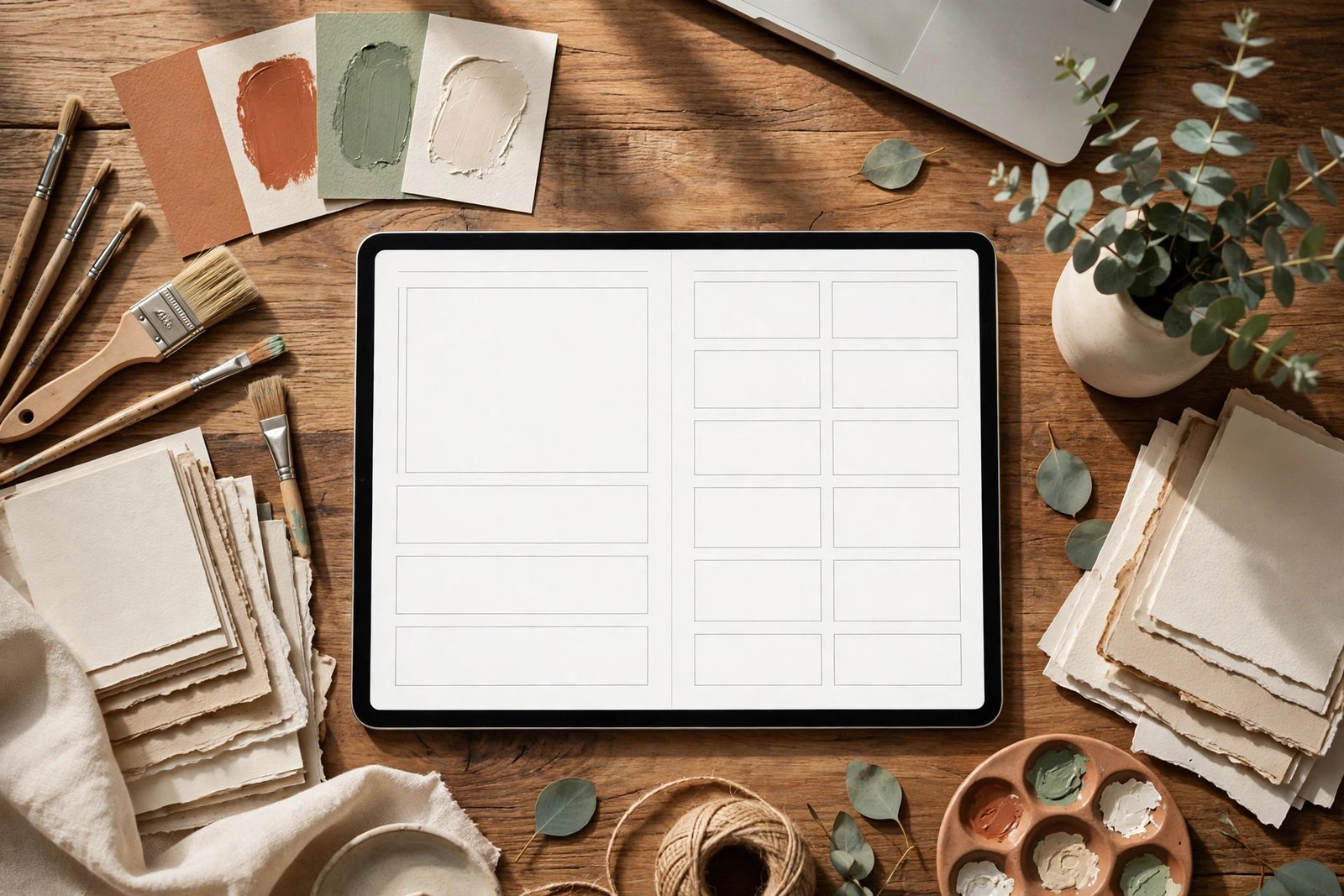
Exactly how: Start with a cover, an index or contents page, a daily page, a weekly review, a monthly page, and a notes page. Give every spread one job, and give every page a clear place to start, or your buyer will stare at a blank page and close the file. Use one prompt per page section, leave generous writing space, and keep buttons and tabs in the same place on every page. Build the daily page first and duplicate it, changing only the prompt, so the set stays consistent. Add hyperlinks only after the pages are final, because a changed page can break a link.
Example: A daily page with 3 sections works well: “Today I notice…”, “Three good things”, and “One thing for tomorrow.” Each section gets 4 to 6 ruled lines. The buyer finishes in 10 minutes and knows exactly where to begin tomorrow.
Pro Tip: Count the writing lines on each page. If a page has fewer than 4 lines for its main prompt, buyers will feel squeezed. If it has more than 10, many will leave it half empty.
Step 4: Add Hyperlinks and Test Every Tap
What to do: Turn your journal into a digital journal in Canva that buyers can navigate with taps, then test every link yourself.
Exactly how: Add a tab bar on each page with links to the cover, index, daily, weekly, and monthly pages. In Canva, select each tab shape or text box, add a link to the matching page, and name the link clearly. Export as PDF Standard, not PDF Print, so links stay active. Open the PDF in GoodNotes or a similar app, tap every tab, and check that each tap lands on the right page. Then test with a stylus: write on 5 pages, undo, and check that links still work after writing.
Example: A 62-page journal needs about 5 tabs per page, which is roughly 300 links. That sounds heavy, but duplicating a finished tab bar copies the links with it in Canva, so you link once per page type, not once per page.
Pro Tip: Keep a one-page link checklist: cover, index, daily, weekly, monthly, notes. Tick each one after you tap it. One dead tab in a paid product earns a refund request faster than a plain cover ever will.
Step 5: Package the File, Write the Licence, and Price It Honestly
What to do: Prepare a clean download pack, a short licence, and a price that reflects the value to the buyer.
Exactly how: Export the final PDF, open it page by page, and check for spelling errors, cut-off text, and blank pages. Name the file clearly, such as Digital-Journal-Evening-Undated.pdf, and add a short README PDF with 5 import steps for GoodNotes and Notability. Write a one-paragraph licence in plain words: personal use only, no sharing, no resale, no redistribution. Price the journal for the time it saves the buyer, not for the hours it took you to decorate it. A focused 50 to 80-page undated journal often sells well between $7 and $15 as a single PDF, while a larger pack with stickers or extra trackers can sit higher. Check similar journals, then pick a price you can explain in one sentence.
Example: “An undated 64-page evening journal with hyperlinked tabs, 12 monthly pages, and a 1-page import guide, personal use only, $9.” The buyer knows the size, the features, and the rules before paying.
Pro Tip: Sell the journal as a PDF plus a short “how to import” guide, not as a Canva link. A Canva link invites copying and editing accidents; a finished PDF protects your design and works the same for every buyer.
Step 6: List It, Show It in Use, and Launch to a Small Audience First
What to do: Write a listing that shows the journal in use, then launch it to a small group before you spend on wider promotion.
Exactly how: Write a title that names the buyer and the job, then 4 bullet points covering page count, dated or undated, apps it works with, and what is included. Show 6 to 8 preview images: cover, index, daily page, weekly page, a page with handwriting, and the tab bar in action. Record a 30-second screen video of you tapping through the tabs if you can, because movement proves the links work. List it on your own website first, such as the Haseen Tools shop, so you control the file, the price, and the buyer email. Send it to 10 people who match your buyer, ask for one honest flaw each, and fix the top 3 flaws before a wider launch.
Example: A listing that says “Undated, 64 pages, hyperlinked tabs, works in GoodNotes and Notability, PDF plus import guide” answers the 4 questions most buyers ask before they buy. A listing that only says “beautiful journal” answers none of them.
Pro Tip: Add one preview image that shows a completed page with realistic handwriting-style notes. Buyers need to picture their own words on the page, not just an empty template.

Digital Journal vs Paper Journal vs Plain PDF Notes
Use this comparison to explain your product clearly in your listing, and to help buyers choose with confidence.
| Feature | Digital journal in Canva | Paper journal | Plain PDF notes |
|---|---|---|---|
| Page count | Unlimited duplicates, same file | Fixed, runs out | Unlimited, but no structure |
| Navigation | Tappable tabs | Flip and search | Scroll and search |
| Writing feel | Stylus on glass | Pen on paper | Typing or stylus, no tabs |
| Mistakes | Undo in one tap | Cross out or rewrite | Undo, but pages drift |
| Cost over time | One purchase, reuse yearly | New book each year | Free, but you build it yourself |
| Best for | Tablet users who want structure | Writers who love paper | Quick notes, not a habit |
Common Mistake: Do not claim a digital journal is “just like paper.” It is not, and buyers who love paper will feel misled. Sell the real strengths instead: tabs, duplicates, undo, and a journal that travels with the tablet.
Common Mistakes to Avoid
- Designing 100 pages before testing one. Test the daily page on a tablet first. A flaw copied 100 times is 100 flaws.
- Using 6 colours and 5 fonts. A journal with a new style on every page feels messy. Three colours and two fonts, used every time, feel calm and professional.
- Adding tiny text to look clever. If a prompt is hard to read on a tablet at arm’s length, it is too small. Make the prompt bigger and cut a decoration.
- Linking before the pages are final. Move one page after linking and your tabs point to the wrong place. Link last, then test every tap.
- Hiding the licence and import steps. Buyers ask “how do I open this?” more than any other question. Answer it in the listing and in the download pack.
- Pricing from your hours alone. A journal that took 20 hours but saves a buyer 5 minutes a day for a year is worth more than a journal that took 40 hours and saves nothing. Price the result.
Quick Checklist: Your Digital Journal in Canva
- One buyer and one job written in a single sentence.
- Style system fixed: 3 colours, 2 fonts, 3 page rules.
- Core pages built first: cover, index, daily, weekly, monthly, notes.
- Hyperlinked tabs added last and every tap tested on a tablet.
- PDF checked page by page, README with import steps included.
- Short licence in plain words, price explained in one sentence.
- Listing with 6 to 8 previews, page count, apps, and contents.
- Launched to 10 real buyers first, top 3 flaws fixed.
Frequently Asked Questions
Can I sell a digital journal made in Canva?
Yes, you can sell a finished PDF journal you designed in Canva, as long as you use elements you have the right to sell and you export a finished file. Do not sell a shared Canva edit link as the product, and check the licence of any stock photo or graphic you use before you list it.
Do buyers need Canva to use a digital journal?
No. Buyers need a PDF annotation or note-taking app such as GoodNotes, Notability, or a similar app on a tablet, plus a stylus for handwriting. Your import guide should name the apps you tested and show the 5 steps to import the PDF.
What size should the pages in a digital journal in Canva be?
A4 portrait and US Letter portrait both work well on most tablets. Pick one size for the whole journal, keep the same margins on every page, and test the daily page on a tablet before you build the full set. A consistent size also keeps your hyperlinks and tab bar aligned.
How much should I charge for a digital journal?
Charge for the value and the page count, not only for your time. A focused undated journal of 50 to 80 pages often sells between $7 and $15, while a larger pack with bonus trackers or stickers can sell for more. Compare 5 similar journals, then choose a price you can explain in one sentence.
Can I sell the same digital journal on my own website and on a marketplace?
Yes, in most cases you can sell the same PDF in more than one place, as long as each listing states the same licence and file. Keep the price and the file version the same everywhere, so a buyer never pays more for an older version by accident.
Conclusion: Start Small, Test on a Tablet, Then Sell
A digital journal in Canva works when it is simple, consistent, and easy to navigate. You do not need 200 pages or a design degree. You need one clear buyer, one job, and a journal that opens on the right page every time.
- Pick one buyer and one job before you open Canva, and let that choice shape every page.
- Fix your style system first, then build the 6 core pages and test the daily page on a tablet.
- Link last and test every tap, package a clean PDF with an import guide and a plain-words licence.
- Launch small, fix the top flaws from real buyers, and only then promote the journal more widely.
Your next step is small and concrete: write your one-sentence buyer statement today, then design one daily page in Canva and test it on your tablet tonight. If that page feels easy to write on, you have a journal worth finishing. Browse the Haseen Tools shop for templates and guides that can speed up your next product, and share your daily page test in the comments – what worked, and what felt cramped?




2 thoughts on “How to Create and Sell a Digital Journal in Canva: A Step-by-Step Guide”