

How to Create and Sell a Notion Budget Tracker Template: A Step-by-Step Guide

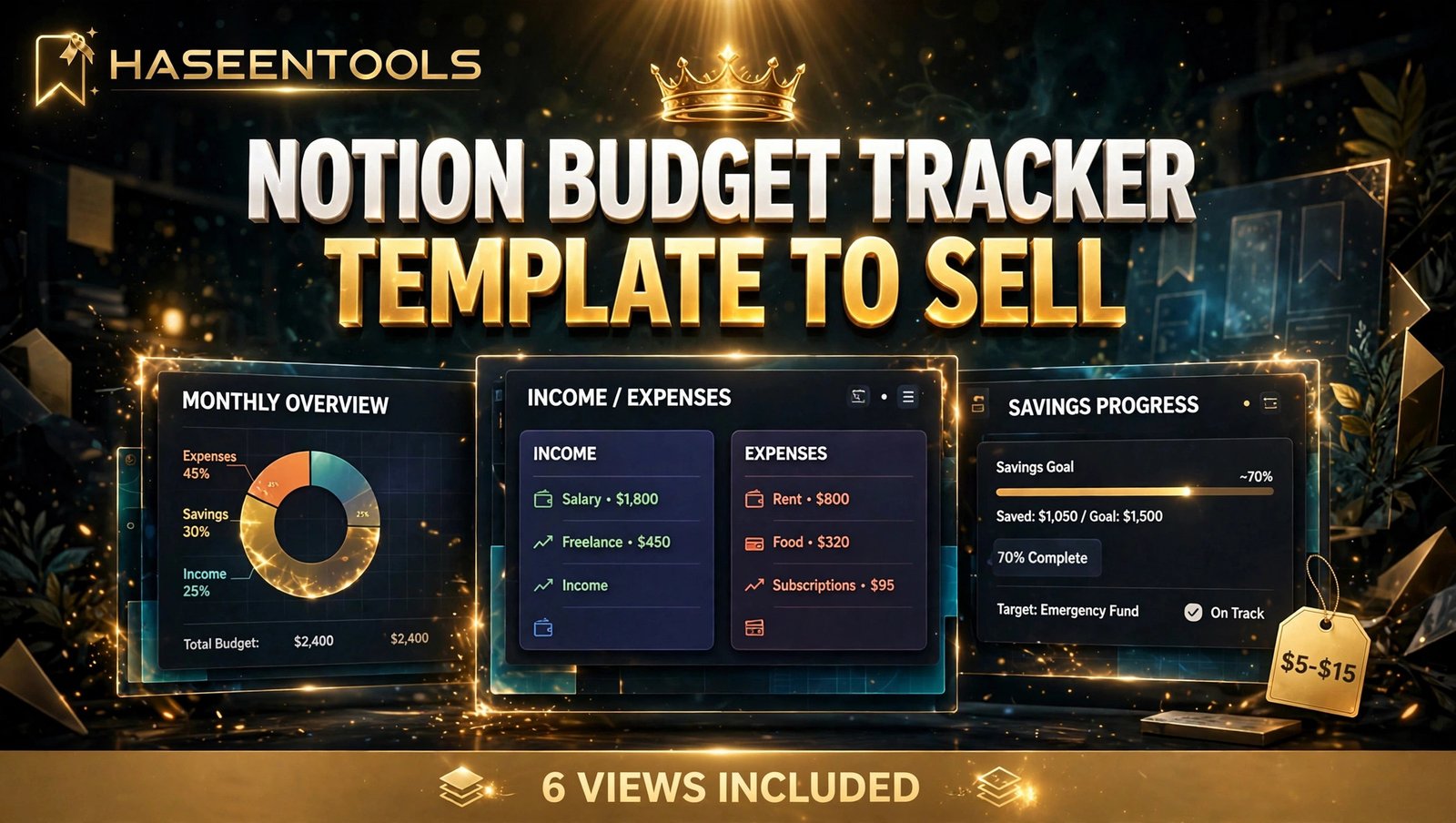
Most budgets die in a notebook nobody opens. A couple agrees to track spending on Sunday, writes three expenses on Monday, and by Friday the notebook is under a pile of post. That is exactly why a Notion budget tracker template to sell is such a strong little product: it lives on the phone your buyer already carries, it does the maths for them, and it takes ten seconds a day to use. In this guide you will build one from scratch, test it like a buyer, and list it for sale.
What Is a Notion Budget Tracker Template?
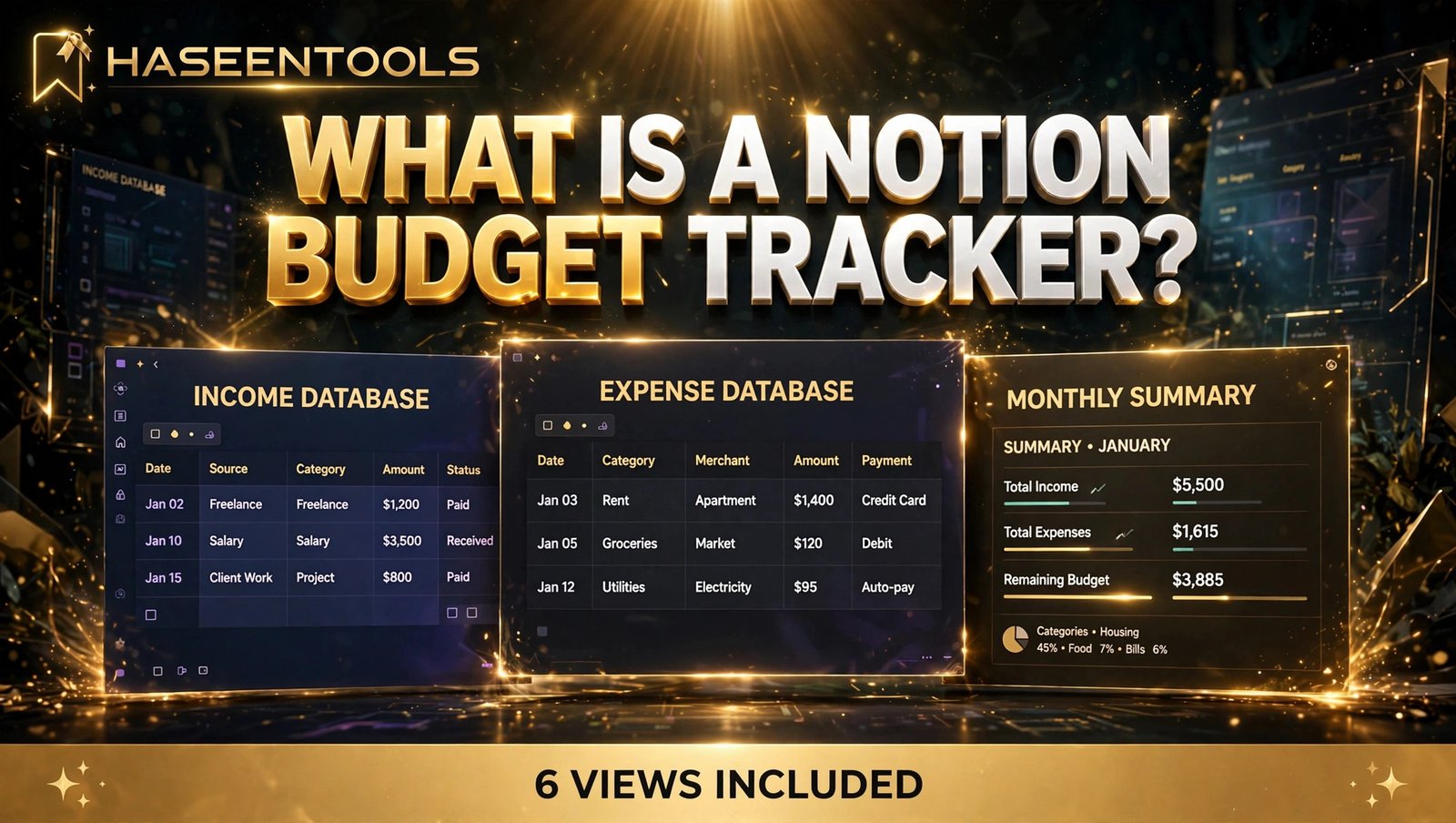
A Notion budget tracker template is a ready-made Notion workspace that helps someone plan what money comes in, record what goes out, and see what is left — without building the system themselves. Your buyer duplicates it into their own Notion account, adds their income and spending, and the tracker updates itself.
A Notion budget tracker template to sell is a Notion workspace with income and expense databases, a monthly dashboard, category views and automatic totals, sold as a duplicate link with a personal-use licence. Buyers copy it into their Notion account, enter their numbers, and see their budget update instantly.
It works best as a shared-household product. One person earns, two people spend, and nobody remembers who paid the electricity bill. A tracker built for two — with a “Paid by” field and a shared dashboard — solves a real argument. That is your angle: a calm system for couples who share money, not another pretty spreadsheet. It pairs well with a Notion habit tracker template for the same household.
Pro Tip: Build the template for one clear buyer — a couple sharing a household budget — and every design choice gets easier. A template for “everyone” ends up helping no one.
Step 1 — Pick Your Buyer and Plan the Tracker
What to do: Choose one buyer and sketch the tracker on paper before you touch Notion.
Exactly how: Write down your buyer in one sentence: “A couple in their late twenties who share rent, bills and groceries and want to stop arguing about money.” Then list the six views your template will include: Dashboard, Monthly Spending, Spending by Category, Savings Goals, Bills Due, and Yearly Overview. Sketch each view as a rough box on paper.
Example: Your buyer is Sara and Dan, who share a flat. They need a monthly view that shows rent, bills, groceries and fun money in one glance, plus a bills view so neither of them misses the internet payment again. Six views cover that without clutter.
Pro Tip: If a view does not answer a question your buyer actually asks — “How much can we still spend on food this month?” — cut it before you build it.
Step 2 — Build the Two Core Databases
What to do: Create two linked databases: one for income, one for expenses.
Exactly how: In a fresh Notion page, add a database called “Income” with properties for Source (title), Amount (number), Date (date) and Paid by (select: Partner 1 / Partner 2 / Joint). Add a second database called “Expenses” with Name (title), Amount (number), Date (date), Category (select: Rent, Bills, Groceries, Transport, Fun, Savings) and Paid by (select). Link the two with a relation so monthly totals pull from both.
Example: Enter three test rows in Expenses — rent $800, groceries $120, internet $45 — and two in Income. Your monthly view should already show totals you can check by hand in under a minute.
Pro Tip: Keep your category list short. Six categories beat twelve: buyers with twelve categories stop logging expenses by week two.
Step 3 — Design a Dashboard Your Buyer Understands in 10 Seconds
What to do: Build one dashboard page that answers the three money questions at a glance.
Exactly how: At the top, put three big number blocks: Money In This Month, Money Out This Month, and Money Left. Under them, add a linked view of this month’s expenses grouped by category, and a small “Bills Due This Week” list. Use one calm colour for income and one for spending. Add a short “Start Here” section at the very top with three steps: duplicate, add your income, log your first expense.
Example: A buyer opens the dashboard and sees “$2,400 in, $1,850 out, $550 left” before they scroll. That ten-second answer is what earns you a five-star review.
Pro Tip: Test your dashboard on your phone. Most buyers will open it on mobile, so if the numbers need sideways scrolling, your layout is too wide.
But here is the part most people miss: a beautiful dashboard nobody understands is worse than a plain one everyone gets. Clarity sells; decoration does not.

Step 4 — Add Formulas and Views That Do the Maths
What to do: Add the formulas and filtered views that turn raw entries into answers.
Exactly how: Add a formula that flags any entry over its monthly category limit — a simple checkbox that ticks when spending passes the limit. Create the six views from Step 1 as filtered views of the same databases: Monthly Spending (this month only), Spending by Category (grouped by category with sums), Savings Goals (a progress bar formula showing saved versus target), Bills Due (date is within the next 7 days), and Yearly Overview (grouped by month). Check every total against a calculator as you go.
Example: Your Savings Goals view shows “Holiday fund: $600 saved of $1,000 — 60%”. One glance tells the buyer whether the goal is on track, with no maths on their side.
Pro Tip: Name your views in plain words your buyer would use — “What did we spend?” beats “Expense aggregation view” every time.
Step 5 — Test It Like a Buyer, Then Price It at $5–$15
What to do: Break your own template before a buyer does, then price it fairly.
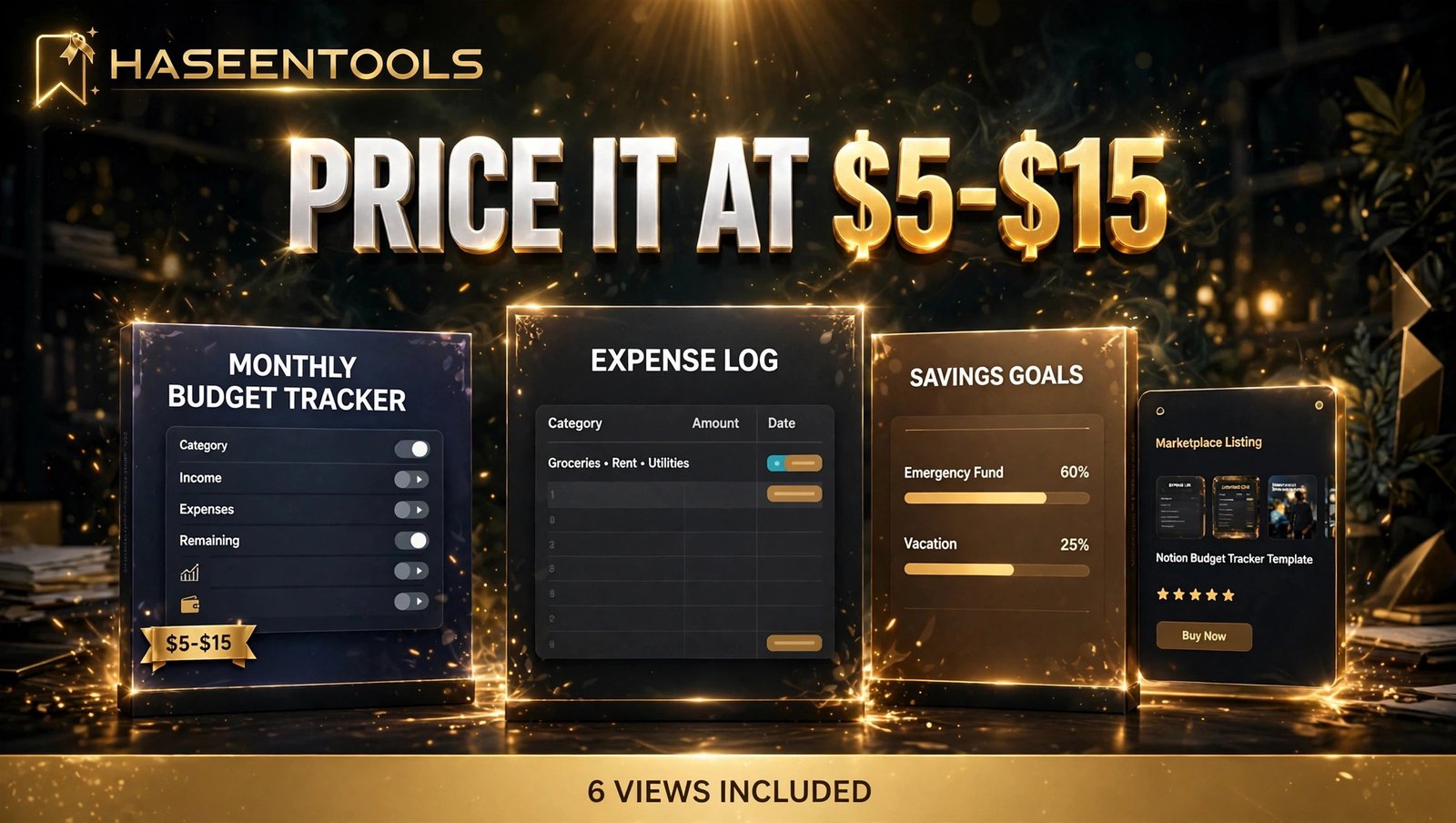
Exactly how: Duplicate the template into a fresh Notion account, or ask a friend to. Enter a full month of realistic data — two incomes, about 25 expenses, one savings goal — and use it for a week. Fix every formula that shows the wrong total, every view that shows last month’s data, and every instruction that confuses your tester. Then set your price: a focused Notion budget tracker template to sell with 6 views included, a Start Here guide and a personal-use licence sells well at $5–$15. Price at $9 if you want a simple middle point, or $12 if you add a savings-goal tracker and a yearly overview.
Example: Your tester logs a $60 grocery shop and the dashboard still says $550 left instead of $490. That is a broken relation, not a small bug — find it now, because a buyer who finds it first asks for a refund.
Pro Tip: Include a short PDF or Notion page called “Start Here” with setup steps and one worked example. It cuts support messages to almost zero.
Step 6 — List It on the Notion Marketplace and Get Your First Sales
What to do: Publish your template where Notion buyers already look, then send it traffic.
Exactly how: Go to the Notion Marketplace to sell Notion templates: submit yours with a clear title, a cover image that shows the dashboard, and a description that names the buyer: “A budget tracker for couples who share household money — 6 views, automatic totals, no setup.” Set your price, add your duplicate link, and choose the personal-use licence. Then make one Pinterest pin a day showing the dashboard, and write one short post in a Notion or budgeting community explaining the problem it solves — not just the link.
Example: A seller with no audience lists a $9 budget tracker, pins the dashboard image to Pinterest three times a week, and sees the first sale in the second week from a search, not from followers.
Pro Tip: Give away a free one-page monthly budget sheet in exchange for an email address, then offer the full 6-view tracker to that list. Your buyers come from your list, not from the marketplace alone.
Notion vs Google Sheets vs Printable Budget Planner
| Feature | Notion Budget Tracker | Google Sheets Tracker | Printable Budget Planner |
|---|---|---|---|
| Best for | Couples sharing money daily | Solo users who love formulas | Paper-first households |
| Automatic totals | Yes, with formulas | Yes, with formulas | No, by hand |
| Works on phone | Yes, Notion app | Yes, Sheets app | No |
| Setup time for buyer | Under 10 minutes | 10–20 minutes | Print and write |
| Typical price | $5–$15 | $5–$12 | $5–$9 |
A Notion tracker wins when your buyer wants everything in one place they already open daily. If they live in spreadsheets, our guide to digital budget planners shows the Sheets version instead.
Common Mistakes to Avoid
- Building for everyone. A tracker for students, freelancers and couples pleases nobody. Pick one buyer and serve them properly.
- Twelve categories and nine views. Every extra field is a reason to stop logging. Six categories and six views are enough.
- Never testing with real data. Empty templates always look perfect. A month of test data finds the broken formulas before your buyers do.
- Pricing at $29 with no reviews. New sellers earn trust at $5–$15 first. Raise the price after ten happy buyers, not before the first one.
- Forgetting the licence. State clearly that the template is for personal use only. Buyers who resell your work cost you far more than one sale is worth.
Quick Checklist
- One buyer chosen: a couple or household sharing money
- Income and Expenses databases built and linked
- 6 views included: Dashboard, Monthly, Category, Savings, Bills, Yearly
- Every total checked by hand against a calculator
- Tested for a week with a full month of realistic data
- “Start Here” guide included
- Price set at $5–$15 with a personal-use licence
- Listed on the Notion Marketplace with a dashboard cover image
Frequently Asked Questions
Do I need Notion Plus to sell a budget tracker template?
No. You can build and sell a template with a free Notion account. Buyers duplicate it into their own free account too. A paid plan only matters if you want advanced automations, and a first template does not need them.
Can I sell a Notion budget tracker template if I have no audience?
Yes. The Notion Marketplace, Pinterest search and budgeting communities bring buyers to you. A clear listing aimed at one buyer — couples sharing household money — matters far more than a follower count.
How long does it take to build a Notion budget tracker template to sell?
About 4–6 hours across two days: one afternoon to build the databases and dashboard, then a week of light testing with real data. Rushing the test week is the most common reason new templates get refund requests.
What should I charge for a Notion budget tracker template?
Most focused budget trackers sell at $5–$15. Start at $9 if your template has 6 views and a Start Here guide, and raise the price once you have reviews. A higher price with zero reviews usually means zero sales.
Conclusion
- Pick one buyer — a couple or household sharing money — and build only what they need.
- Two linked databases and six clear views are the whole product; everything else is decoration.
- Test with a full month of real data, because a broken total costs you a refund and a review.
- Price at $5–$15 with a personal-use licence, list on the Notion Marketplace, and let Pinterest bring buyers while you build the next template.
A Notion budget tracker template to sell is one of the simplest digital products you can make this weekend: one buyer, two databases, six views, and a week of honest testing. Build it and list it.
Browse more templates in the shop.